Canvas basics
The canvas is the middle of the editor — a live version of your page you build on directly. Everything you do here shows up exactly as buyers will see it.
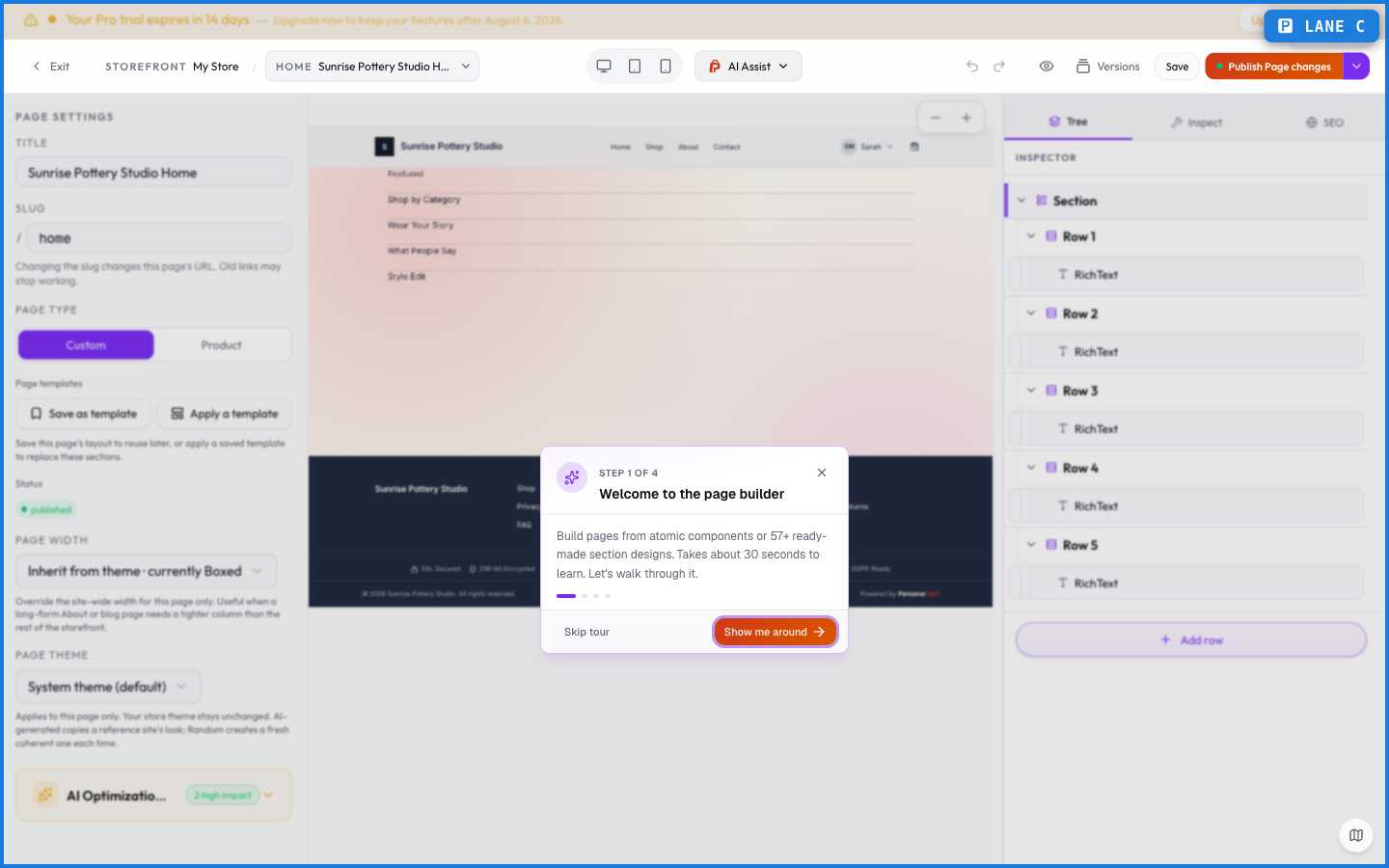
The moves
- Add a section. Insert a new section anywhere in the stack, then fill it with blocks.
- Select. Click a section or block to select it — the right rail then shows that block's settings.
- Reorder. Drag a section or block to move it. It stays within its parent, so a block won't jump out of its section.
- Resize. Drag a block's handles to change its size; the layout reflows around it.
- Preview responsive. Switch between desktop, tablet, and mobile to check how the page reflows on each.
What happens — and what doesn't
- The canvas renders at true fidelity — what you see is what ships, including spacing and fonts.
- Dragging is bounded: a block can't escape its section, which keeps layouts from breaking.
- The desktop/tablet/mobile switch previews the same content reflowed — you're not building three separate pages.
- Nothing is public until you publish.
How do I add a new section to a page?
Use the add-section control on the canvas to insert one, then drop blocks into it. Sections stack top to bottom to form the page.
Can I check how my page looks on mobile?
Yes. The editor has desktop, tablet, and mobile preview modes. They show the same content reflowed for each screen size.
Will dragging a block break my layout?
No. Dragging is bounded to a block's parent section, so blocks reorder within their section rather than escaping it.
What this screen looks like in every state
| State | When you'll see it | What you see, and what to do |
|---|---|---|
| Empty | You haven't created anything here yet | “No pages found” — with a shortcut to create the first one. Nothing is wrong; there's just nothing to show yet. |
| Loading | The screen is fetching your data | A skeleton in the shape of the finished page. It should be brief — if it persists, the load has failed rather than stalled. |
| Error | The data couldn't be loaded | A message with a retry. Retry first: most of these are a dropped request, not a broken store. If it repeats, the outage is upstream and reloading won't help. |
| No access | Your role doesn't include this screen | A permission notice instead of the page. An owner or admin can grant access under Settings → Team. |
When something goes wrong
These are the messages this screen can show you, and what each one means.
| If you see | What to do |
|---|---|
| "…" is reserved for a built-in store page (like cart or checkout). Choose a different slug. | Retry the action. If it keeps happening, contact support with what you were doing. |
| Cannot delete the shop page. | The change didn't save. Retry — if it keeps failing, the request isn't reaching the server. |
| Delete the product to remove this page. | The change didn't save. Retry — if it keeps failing, the request isn't reaching the server. |
| Page title is required. | A required field is blank. Fill it in and save again. |
| This page is protected and cannot be deleted. | The change didn't save. Retry — if it keeps failing, the request isn't reaching the server. |