Support Inbox
The Support Inbox is where your buyers' messages land — questions about an order, a download that won't open, a refund request. It's the mirror image of the Help & Support screen (where you talk to PersonaCart); here, you're the one answering.
Where to find it
Sidebar → COMMERCE → Support Inbox.
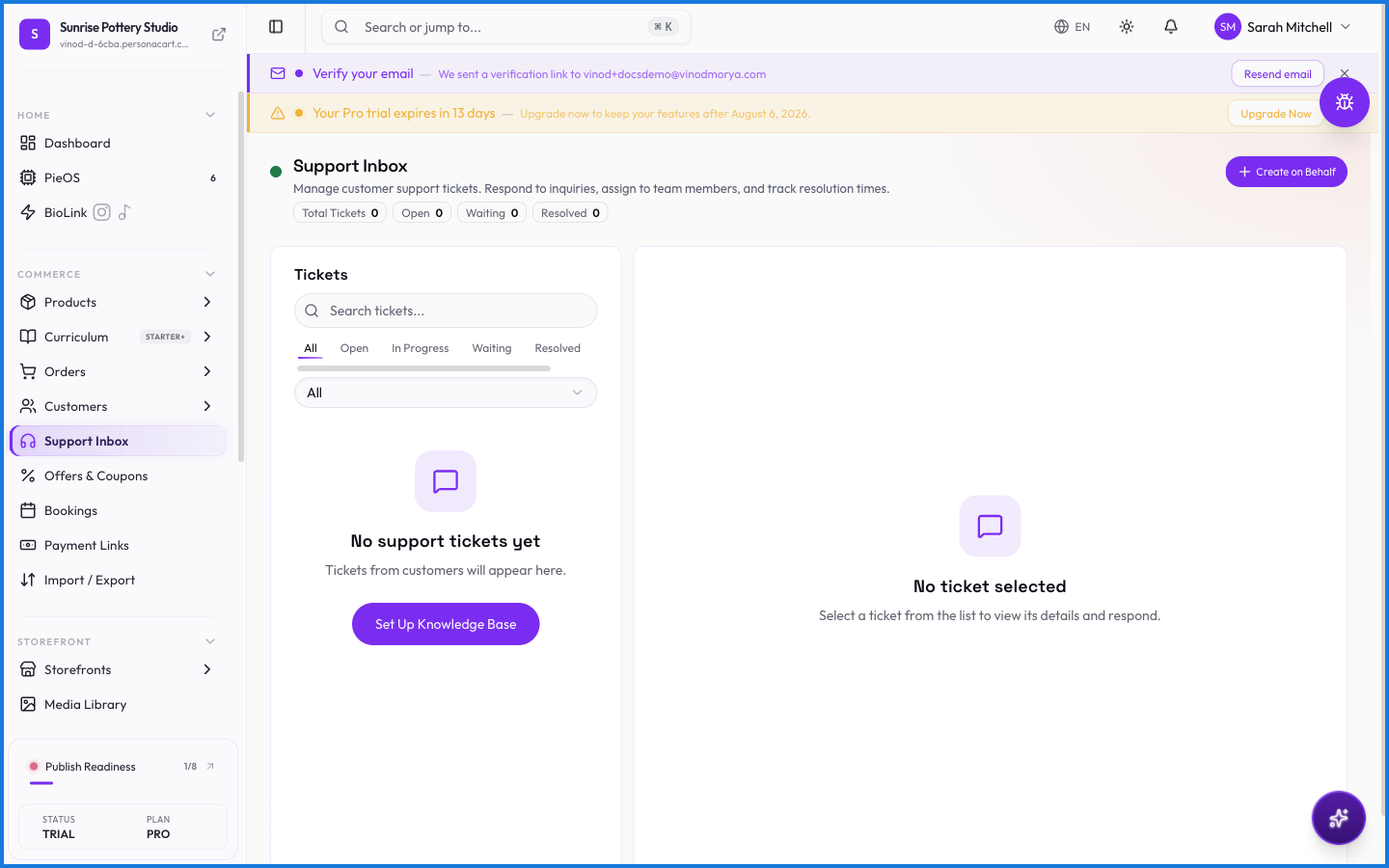
Working the inbox
Conversations list on the left, with the selected thread open on the right. Each conversation ties back to the customer, so you see their order and account context while you reply — no digging. You can respond, mark a conversation resolved, and reopen it if the customer writes back.
What happens — and what doesn't
- Messages here come from your customers, through your storefront's contact and support surfaces.
- Replies reach the customer by email and stay threaded, so the whole exchange lives in one conversation.
- A conversation's history also shows up on that customer's Customer 360 profile, so context follows the person.
- This is separate from the Help & Support hub in your profile menu — that one is for reaching PersonaCart's team.
What's the difference between Support Inbox and Help & Support?
Support Inbox holds messages from your buyers, which you answer. Help & Support (in your profile menu) is where you reach the PersonaCart team for help with the platform.
Where do Support Inbox messages come from?
From your customers, through your storefront's contact and support channels. Their order and account context is attached so you can answer with the full picture.
Can I see a customer's past support threads?
Yes. Every conversation also appears on that customer's Customer 360 profile, alongside their orders.
Every field on this screen
Every control here, read straight from the live app so it matches what you see.
| Field | Type | What it accepts | What it does |
|---|---|---|---|
| All | Dropdown | — | |
| Brief description of the issue | Text | — | |
| Message | Long text | — | e.g. Describe the issue in detail... |
| Priority | Dropdown |
| |
| Search tickets | Text | — | |
| Subject | Long text | — | e.g. Brief description of the issue... |
6 fields, read from the live app. Which ones you see depends on the product type and your plan.
What this screen looks like in every state
| State | When you'll see it | What you see, and what to do |
|---|---|---|
| Empty | You haven't created anything here yet | “No ticket selected” — with a shortcut to create the first one. Nothing is wrong; there's just nothing to show yet. |
| Loading | The screen is fetching your data | A skeleton in the shape of the finished page. It should be brief — if it persists, the load has failed rather than stalled. |
| Error | The data couldn't be loaded | A message with a retry. Retry first: most of these are a dropped request, not a broken store. If it repeats, the outage is upstream and reloading won't help. |
| No access | Your role doesn't include this screen | A permission notice instead of the page. An owner or admin can grant access under Settings → Team. |