Segments
A segment is a saved group of customers defined by rules — "spent over $100," "tagged VIP," "more than three orders." Build it once, and it stays current as customers move in and out of the rules on their own. Segments are how you target campaigns and offers at the right people.
Where to find it
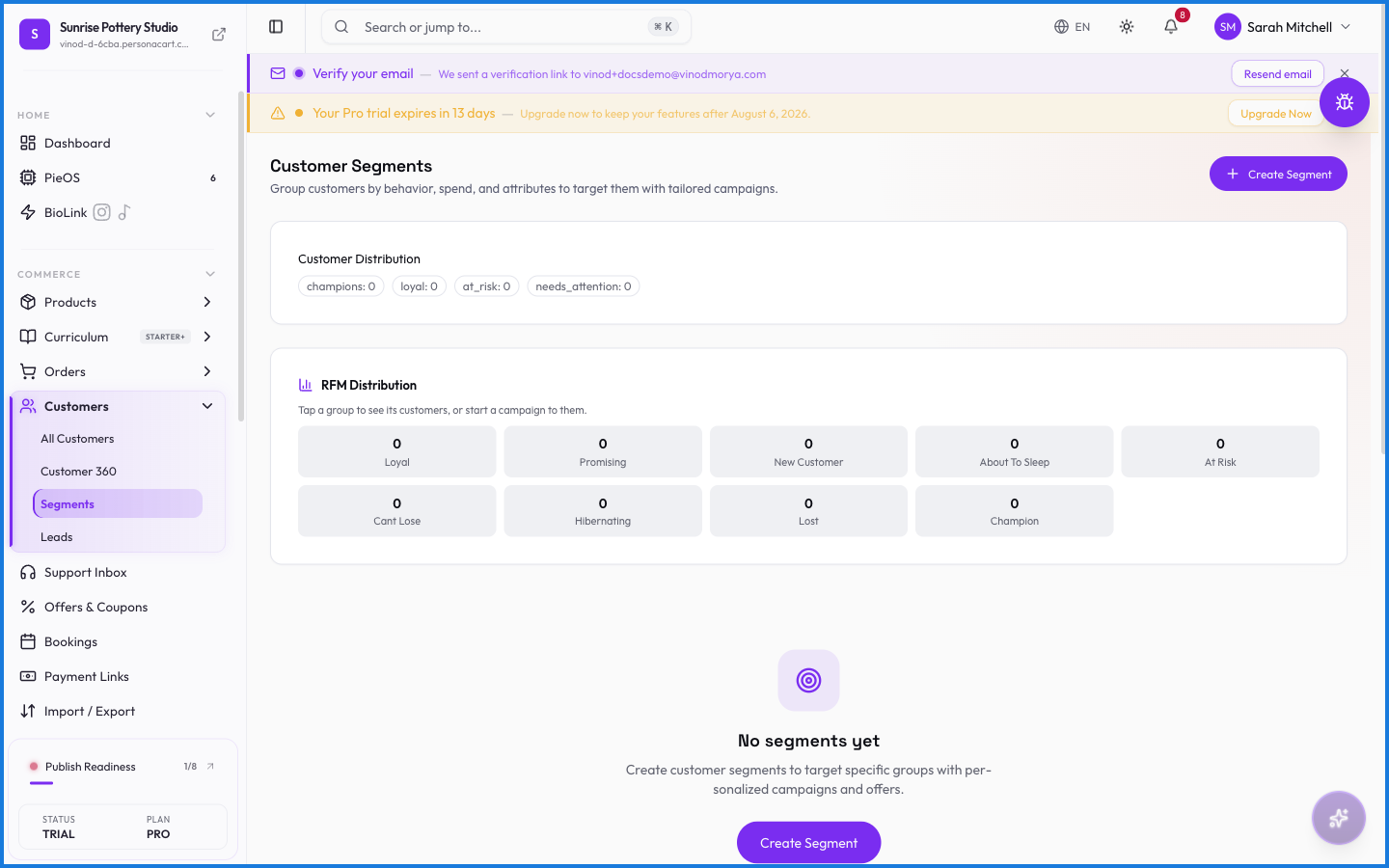
Sidebar → COMMERCE → Customers → Segments.
Building a segment
Click Create Segment, give it a name, and set the rules — tags, total spend, number of orders, signup date, and status. The segment then holds everyone who matches. Because it's rule-based, it updates automatically: a customer who crosses $100 in spend joins your "High spenders" segment without you touching it.
You can also create a segment straight from the Customers list — filter the list, then save that filter as a segment.
What happens — and what doesn't
- Segments are dynamic. Membership is recalculated from the rules, so a segment is never a frozen list — it reflects who qualifies right now.
- Deleting a segment removes the group, not the customers in it.
- Segments feed campaigns and offers, so you send to a live audience rather than a stale export.
Are segments static lists or dynamic?
Dynamic. A segment is a set of rules, and its membership updates automatically as customers meet or stop meeting those rules.
How do I use a segment?
Target it with a campaign or an offer. Instead of picking recipients by hand, you send to everyone currently in the segment.
Can I turn a filtered customer list into a segment?
Yes. Filter the Customers page, then save that filter as a segment to reuse it.
Every field on this screen
Every control here, read straight from the live app.
| Field | Type | What it accepts | What it does |
|---|---|---|---|
| Field | Dropdown | — | |
| Match Type | Dropdown | — | Choices: All conditions (AND)Any condition (OR) |
| Operator | Dropdown | — | |
| Search segments | Text | — | |
| Segment Name | Dropdown | — | e.g. e.g. High-value customers |
| Select… | Dropdown | — | |
| Value | Number |
| e.g. min |
7 fields, read from the live app. Which ones you see depends on the product type and your plan.
What this screen looks like in every state
| State | When you'll see it | What you see, and what to do |
|---|---|---|
| Empty | You haven't created anything here yet | “No segments yet” — with a shortcut to create the first one. Nothing is wrong; there's just nothing to show yet. |
| Loading | The screen is fetching your data | A skeleton in the shape of the finished page. It should be brief — if it persists, the load has failed rather than stalled. |
| Error | The data couldn't be loaded | A message with a retry. Retry first: most of these are a dropped request, not a broken store. If it repeats, the outage is upstream and reloading won't help. |
| No access | Your role doesn't include this screen | A permission notice instead of the page. An owner or admin can grant access under Settings → Team. |
When something goes wrong
These are the messages this screen can show you, and what each one means.
| If you see | What to do |
|---|---|
| Failed to create segment | The change didn't save. Retry — if it keeps failing, the request isn't reaching the server. |