Payment Links
A payment link is a "buy now" shortcut. Instead of sending someone to your storefront, you send them one URL — text it to a client, drop it in an email, post it on Instagram, print it as a QR code. They open it, pay, done. No cart, no browsing.
Each link sells one thing: a product from your catalog, or a custom amount (a $200 consulting fee, a commission, a tip).
Where to find it
Sidebar → COMMERCE → Payment Links.
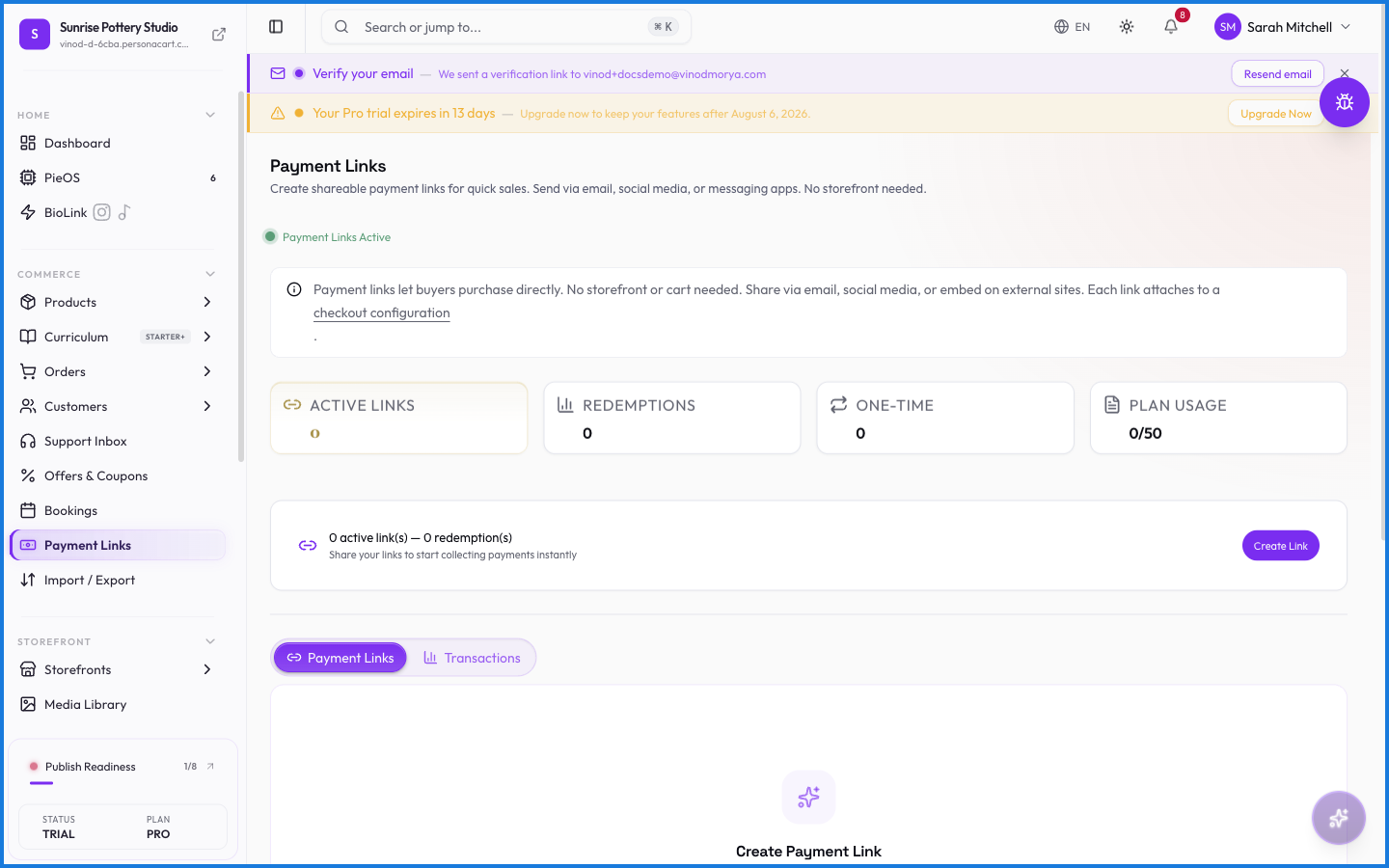
Four stat cards summarize your links — active count, total redemptions, one-time links, and plan usage (like "5 of 50"). The table lists each link with its target, price, redemption count, status, and dates. Row actions let you copy the URL, show a QR code, edit, or delete.
Creating a link
Click Create Link. The dialog has three tabs — Details, Appearance, and Settings — with a live preview of the buyer's payment page on the right.
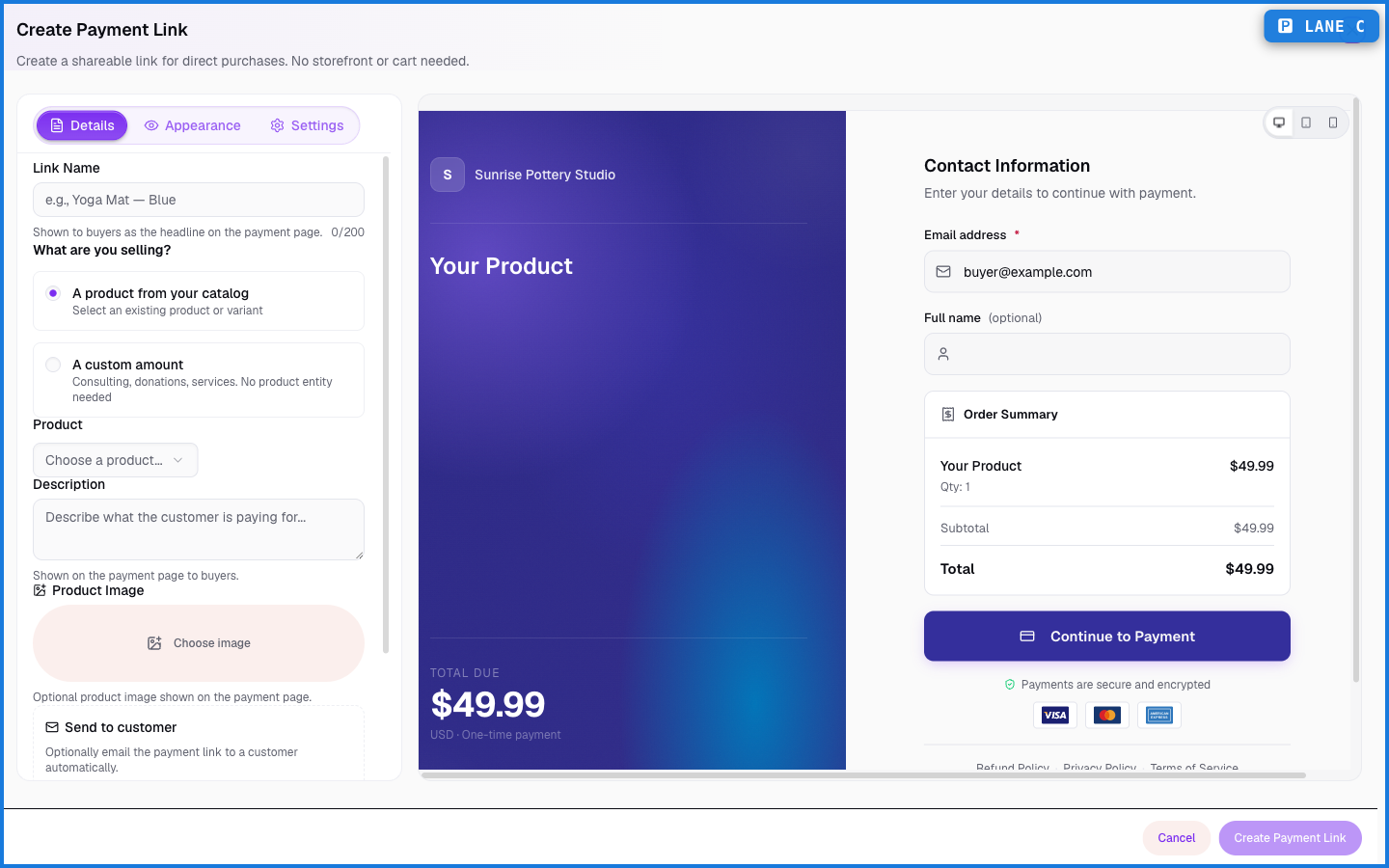
Details — name the link (buyers see this as the headline), pick what you're selling (a catalog product or a custom amount), add a description and image, and set the URL slug. You can even email the link to a customer on creation.
Appearance — the look of the payment page.
Settings — restrictions and the tax decision (below): one-time use, max redemptions, an expiry date, whether login is required, whether coupons are allowed, and a checkout configuration.
Charging tax
Every payment link carries a tax decision — a link never ships without one. On the Settings tab, the Charge tax section controls it.
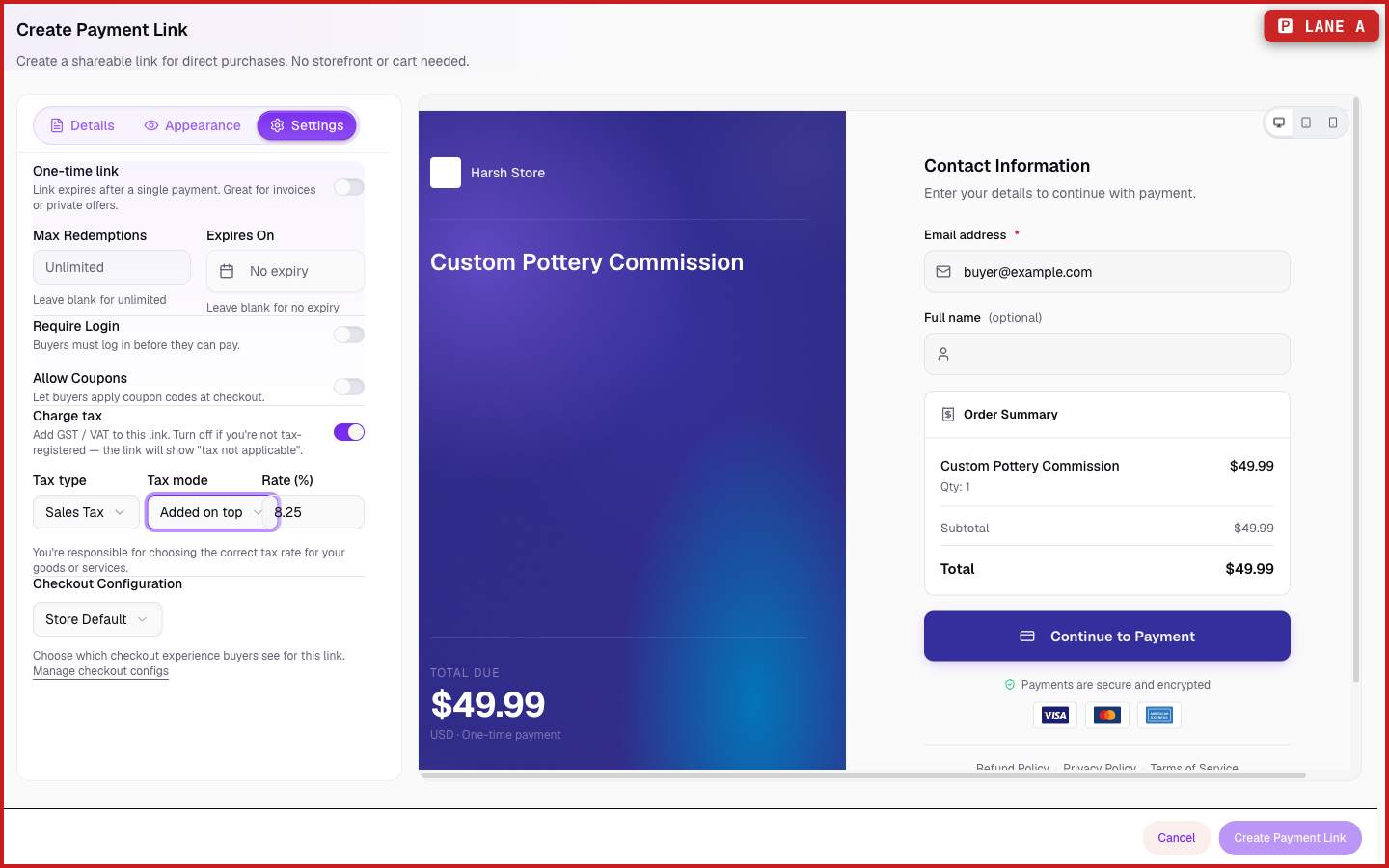
When Charge tax is on, you set three things:
- Tax type — Sales Tax (US), VAT, or GST. This is the label buyers and invoices see.
- Mode — Added on top (the tax is added to the price, so a $100 item at 8.25% charges $108.25) or Included in price (the price already contains the tax, and it's broken out on the invoice).
- Rate — the percentage. You choose it; the platform doesn't second-guess the number, though it's held to a sane 0–100% range.
Turn Charge tax off and the link shows "tax not applicable" — no tax is added, and the invoice says so plainly. That's the honest setting for sellers who aren't tax-registered.
PersonaCart charges buyers on your own connected payment account, so you are the seller of record. Choosing the correct tax rate for your goods and where you sell is your responsibility — the invoice names you as the seller, not PersonaCart.
What happens — and what doesn't
- No storefront required. A payment link works even if the rest of your store is unpublished.
- The buyer-shown total always equals what's charged. With tax added on top, the total goes up; with tax included, the price holds and the tax is itemized on the invoice.
- Only one coupon applies per checkout, and only if you allowed coupons on the link.
- Redemption limits and expiry close a link automatically once hit — good for limited runs and time-boxed offers.
- Editing a link's tax rate affects future payments; invoices already issued keep the rate they were charged at.
- The link is tied to a checkout configuration, which controls the fields and gateways the buyer sees.
Do I need a storefront to use payment links?
No. A payment link is fully standalone. You can share one and collect payment without publishing a storefront or building a cart.
How do I add sales tax to a payment link?
In the Create Payment Link dialog, open the Settings tab and turn on Charge tax. Choose Sales Tax as the type, set the mode (added on top or included in price), and enter your rate.
What does 'tax not applicable' mean?
It's what a link shows when you turn Charge tax off. No tax is added and the invoice states tax is not applicable — the honest choice if you're not registered to collect tax.
Who's responsible for the tax rate I set?
You are. Buyers pay through your own connected payment account, so you're the seller of record. Picking the correct rate for your products and jurisdiction is your call; the invoice lists you as the seller.
Can I limit how many times a link is used?
Yes. Set a max redemptions count or an expiry date on the Settings tab, and the link closes automatically once it's reached.
Every field on this screen
Every field for building a payment link — what you're charging for, how much, and the tax decision it carries. Read straight from the live app, so it matches what you see.
| Field | Type | What it accepts | What it does |
|---|---|---|---|
| 150.00 | Text | — | |
| A custom amount | Dropdown | — | |
| Allow Coupons | On/off | — | |
| Amount | Number |
| e.g. 150.00 |
| Charge tax | On/off | — | |
| Checkout Configuration | Dropdown | — | Choices: Store Default |
| CTA Button Text | Text | — | e.g. Pay '{amount}' securely |
| Description | Long text | — | e.g. Describe what the customer is paying for... |
| Text |
| e.g. [email protected] | |
| Email address | Text |
| e.g. [email protected] |
| Expires On | Date | — | e.g. No expiry |
| John Doe | Text | — | |
| Link Name | Text | — | e.g. e.g., Yoga Mat — Blue |
| Link URL | Text | — | e.g. my-link |
| Max Redemptions | Number |
| e.g. Unlimited |
| my-link | Text | — | |
| Name | Text | — | e.g. John Doe |
| One-time link | Number | — | |
| Pay '{amount}' securely | Text | — | |
| Pre-applied Coupon Code | Text | — | e.g. WELCOME10 |
| Product | Dropdown | — | |
| Rate (%) | Number |
| |
| Require customer name | On/off | — | |
| Require customer phone | On/off | — | |
| Require Login | On/off | — | |
| Show order summary | On/off | — | |
| Show product image | On/off | — | |
| Store Default | Dropdown | — | |
| Tax mode | Number | — | |
| Tax type | Dropdown | — | Choices: GST (India)VATSales TaxIncluded in priceAdded on top |
| WELCOME10 | Text | — | |
| What are you selling? | Choice | — |
32 fields, read from the live app. Which ones you see depends on the product type and your plan.
What this screen looks like in every state
| State | When you'll see it | What you see, and what to do |
|---|---|---|
| Empty | You haven't created anything here yet | “No transactions yet” — with a shortcut to create the first one. Nothing is wrong; there's just nothing to show yet. |
| Loading | The screen is fetching your data | A skeleton in the shape of the finished page. It should be brief — if it persists, the load has failed rather than stalled. |
| Error | The data couldn't be loaded | A message with a retry. Retry first: most of these are a dropped request, not a broken store. If it repeats, the outage is upstream and reloading won't help. |
| No access | Your role doesn't include this screen | A permission notice instead of the page. An owner or admin can grant access under Settings → Team. |
When something goes wrong
These are the messages this screen can show you, and what each one means.
| If you see | What to do |
|---|---|
| Amount must be greater than 0 | Retry the action. If it keeps happening, contact support with what you were doing. |
| Name is required | A required field is blank. Fill it in and save again. |
| Please select a product | Do what the message asks, then try again — it names exactly what's missing. |
| Selected product not found | The item is gone — deleted, or you followed a stale link. Go back to the list and reopen it. |
| URL slug is required | A required field is blank. Fill it in and save again. |