Orders
Every purchase becomes an order here — a mug shipped, a course unlocked, a workshop booked. The Orders page is where you see what sold, fulfill it, and handle refunds or cancellations.
Where to find it
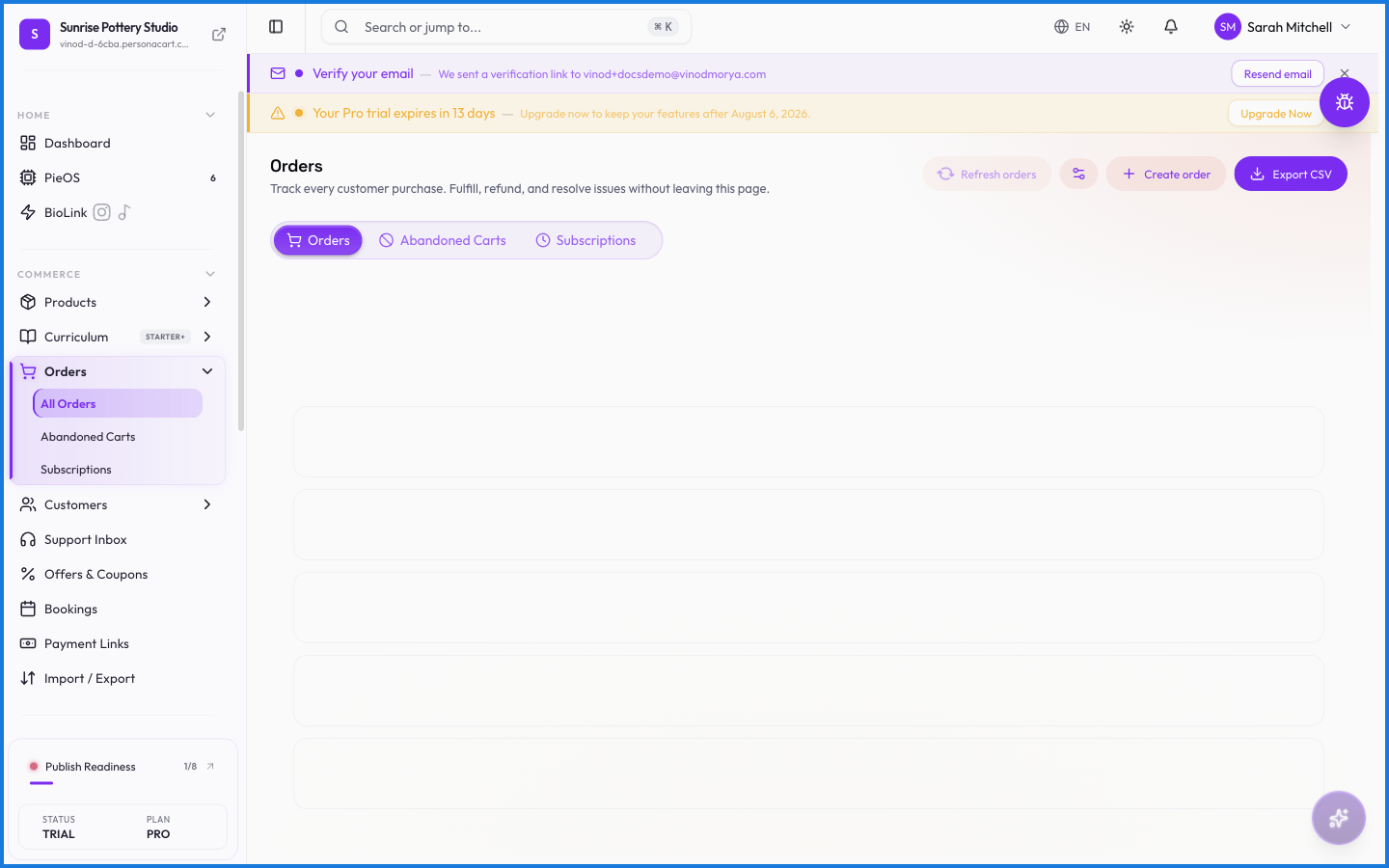
Sidebar → COMMERCE → Orders. Three tabs: the order list, Abandoned Carts, and Subscriptions.
The numbers up top
Four cards summarize all-time performance: Total Orders, Total Revenue (every order added up), Cancelled, and Refunded (each with its dollar amount). Below them, a row of clickable status badges — All, Pending, Confirmed, Processing, Shipped, Delivered, Cancelled, Refunded — each showing a count. Click one to filter the table; click it again to reset.
Finding an order
Search by order number, customer name, or email. Filter by status or by fulfillment state (Unfulfilled, Partial, Fulfilled, Returned). Export downloads the currently filtered orders as a CSV.
Working an order
Open any order to see the full picture: the customer, what they bought, the payment, the shipping address, and a timeline of events. From here you fulfill items (add tracking), mark shipped, issue a refund (full or partial — the tax portion refunds proportionally), or cancel. Each action is recorded on the order's timeline, and buyers get the matching email.
What happens — and what doesn't
- Refunds go back through the original payment. A partial refund returns that fraction of the total, tax included, to the buyer.
- Fulfillment and payment are separate. An order can be paid but unfulfilled; the fulfillment dropdown tracks that half independently.
- Cancelling an order that was paid doesn't automatically refund it — refund and cancel are separate actions, so you stay in control.
- Digital and course orders have nothing to ship, so they skip fulfillment and deliver access instantly on payment.
- Revenue figures reflect captured payments, not test-mode orders.
How do I refund an order?
Open the order and choose refund. You can refund the full amount or a partial amount; the tax portion is refunded proportionally, back through the original payment method.
What's the difference between order status and fulfillment status?
Order status (Pending, Confirmed, Shipped, etc.) tracks the order's lifecycle. Fulfillment status (Unfulfilled, Partial, Fulfilled) tracks whether you've shipped the physical items. They move independently.
Does cancelling an order refund the customer?
No. Cancel and refund are separate actions on purpose. Cancel the order, then issue a refund if money changed hands.
Can I export my orders?
Yes. The Export button downloads the currently filtered set of orders as a CSV you can open in any spreadsheet.
Every field on this screen
The controls on this screen — filters, search, and the settings behind order numbering. Read straight from the live app, so it matches what you see.
| Field | Type | What it accepts | What it does |
|---|---|---|---|
| Carrier * | Text | — | e.g. e.g. UPS, FedEx, USPS |
| Discount | Number | — | |
| Number |
| ||
| Fulfillment | Dropdown | — | |
| Max {amount} | Text | — | |
| New Status | Dropdown | — | |
| Next Order Number | Number |
| |
| Note | Long text | — | |
| Note (optional) | Long text | — | e.g. e.g. Cash received 12 Jun, cheque #1234 |
| Note for customer (optional) | Long text | — | e.g. Add a note for the customer... |
| Number Padding | Number | — | |
| Optional note for your records | Text | — | |
| Order Prefix | Dropdown | — | Choices: None (1, 2, 3...)3 digits (001, 002...)4 digits (0001, 0002...)5 digits (00001, 00002...)6 digits (000001, 000002...) |
| Payment link | Text | — | |
| Reason | Long text | — | e.g. Optional note for your records |
| Refund amount | Number |
| |
| Search by order #, name, or email | Text | — | |
| Search name or email | Text | — | |
| Search products… | Dropdown | — | |
| Shipping | Number | — | |
| Tax | Number | — | |
| Tracking Number * | Text | — | e.g. e.g. 1Z999AA10123456784 |
22 fields, read from the live app. Which ones you see depends on the product type and your plan.
What this screen looks like in every state
| State | When you'll see it | What you see, and what to do |
|---|---|---|
| Empty | Nothing matches the filters or search you have applied | “No orders match your filters” — the data may well exist; clear the filters or widen the date range to see it. |
| Loading | The screen is fetching your data | A skeleton in the shape of the finished page. It should be brief — if it persists, the load has failed rather than stalled. |
| Error | The data couldn't be loaded | A message with a retry. Retry first: most of these are a dropped request, not a broken store. If it repeats, the outage is upstream and reloading won't help. |
| No access | Your role doesn't include this screen | A permission notice instead of the page. An owner or admin can grant access under Settings → Team. |
This screen has more than one empty state depending on what you're looking at: “No orders match your filters”, “No orders yet”.
When something goes wrong
These are the messages this screen can show you, and what each one means.
| If you see | What to do |
|---|---|
| Add at least one product | Do what the message asks, then try again — it names exactly what's missing. |
| Could not create the order | The change didn't save. Retry — if it keeps failing, the request isn't reaching the server. |
| Couldn't complete that action. Please try again. | Retry the action. If it keeps happening, contact support with what you were doing. |
| Enter a valid customer email | Do what the message asks, then try again — it names exactly what's missing. |
| Failed to fulfill … orders | The change didn't save. Retry — if it keeps failing, the request isn't reaching the server. |
| Failed to update … orders | The change didn't save. Retry — if it keeps failing, the request isn't reaching the server. |
| No eligible orders to mark as shipped (must be confirmed or processing) | Retry the action. If it keeps happening, contact support with what you were doing. |
| Order created, but the pay-link could not be generated. | The change didn't save. Retry — if it keeps failing, the request isn't reaching the server. |