Offers & Coupons
This is your discount control center. Two kinds of price cuts live here: coupons (codes a buyer types at checkout) and pricing rules (automatic regional adjustments that need no code). Everything about lowering a price is on this page.
Where to find it
Sidebar → COMMERCE → Offers & Coupons.
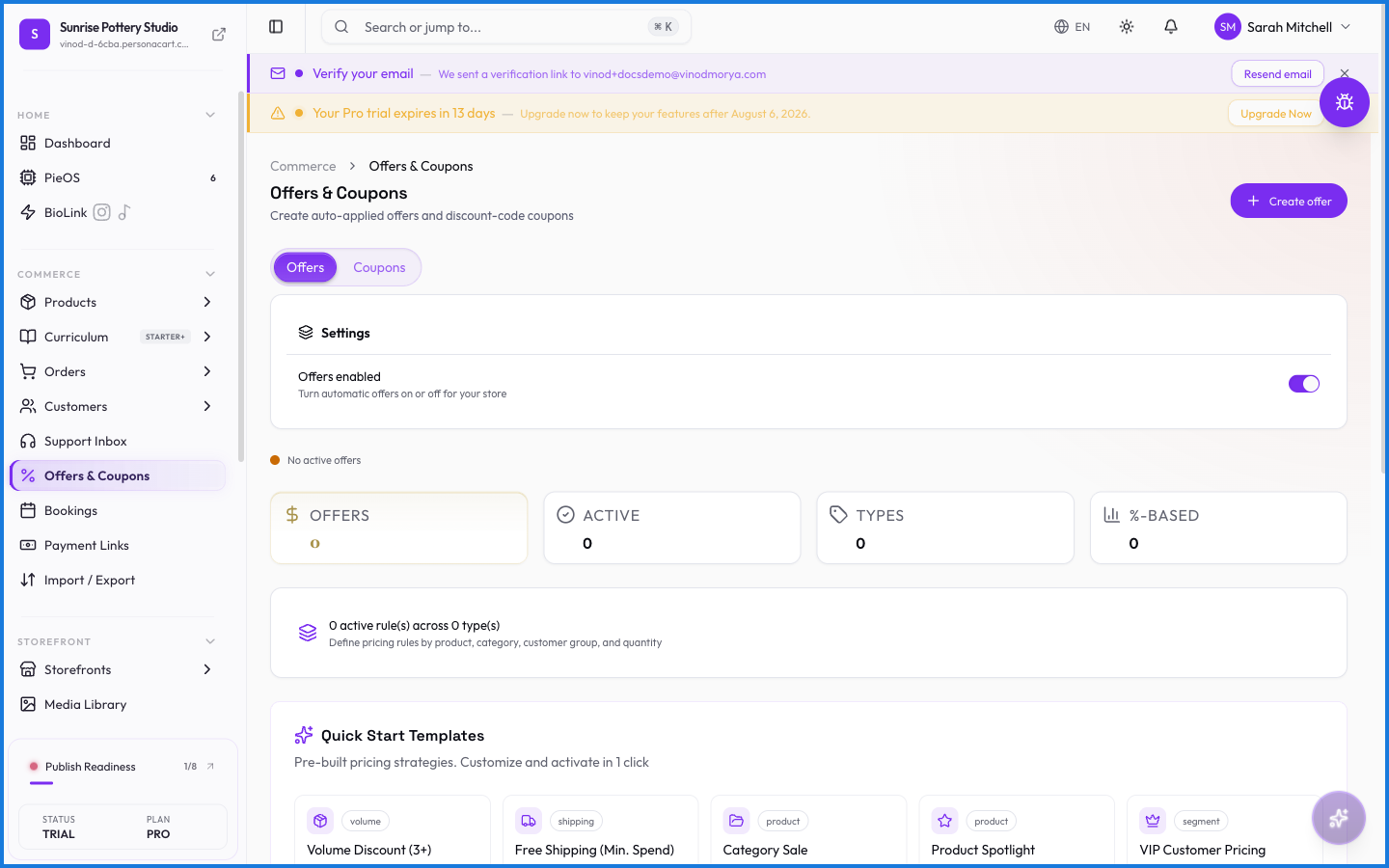
The page splits into two tabs — Coupons and Pricing Rules — each with a count badge. A banner reminds you of the one rule that trips people up: only one coupon applies per checkout, but pricing rules stack on top automatically.
Coupons
Click Create Coupon to open the panel. A coupon has a code, a discount (a percentage or a fixed dollar amount), and controls for how it can be used — usage limits, per-customer limits, minimum purchase, expiry, and which products it applies to. You can also gate a coupon to returning customers only.
Pricing rules
Pricing rules adjust prices automatically by region — no code, no buyer action. They apply on top of whatever coupon is used, which is why the two stack.
What happens — and what doesn't
- One coupon per checkout. A buyer can't combine two codes. If they enter a second, it replaces the first.
- Pricing rules stack with a coupon. A regional adjustment and a coupon can both apply to the same order.
- A coupon set to "returning customers only" is rejected for first-time buyers — with an honest reason at checkout, not a vague "invalid."
- Expiry and usage limits close a coupon automatically; you don't have to disable it by hand.
Can a customer use more than one coupon at checkout?
No — only one coupon per checkout. Pricing rules (automatic regional adjustments) can stack with that one coupon, but two codes can't combine.
What's the difference between a coupon and a pricing rule?
A coupon is a code the buyer enters for a discount. A pricing rule adjusts prices automatically by region, with no code needed. Pricing rules apply on top of coupons.
Can I limit a coupon to returning customers?
Yes. Set the coupon to returning-customers-only, and first-time buyers get a clear message that it's not available to them.
How do I stop a coupon after a while?
Give it an expiry date or a usage limit. It closes automatically once the date passes or the limit is reached.
Every field on this screen
Every field for building a coupon or a pricing rule. Read straight from the live app, so it matches what you see.
| Field | Type | What it accepts | What it does |
|---|---|---|---|
| Apply only when shipping to these countries | Checkbox | — | |
| Auto-apply | On/off | — | |
| Buy Quantity * | Number |
| |
| Conditions | Number | — | |
| Coupon Code * * | Text | — | e.g. e.g. SUMMER20 |
| Days of week | Dropdown | — | |
| Discount on "Get" items (%) | Number |
| |
| Discount Value * | Number | — | |
| Enabled | Number | — | |
| End Hour | Number | — | |
| Every payment | Text | — | |
| Get Quantity * | Number |
| |
| Internal Description | Long text | — | e.g. Optional internal note — not shown to customers |
| Max times this rule can trigger (0 = unlimited) | Number | — | |
| Min. Order ($) | Number |
| e.g. None |
| Minimum items in cart | Number | — | |
| Minimum order subtotal | Number | — | |
| Optional internal note — not shown to customers | Text | — | |
| Per Customer | Number |
| e.g. Unlimited |
| Priority | Number |
| |
| Razorpay Offer ID | Text | — | |
| Rule Name * | Dropdown | — | |
| Search by code | Text | — | |
| Search by name or email | Text | — | |
| Select categories/collections | Checkbox | — | |
| Select customer tags ( selected): | Checkbox | — | |
| Select products ( selected): | Checkbox | — | |
| Select products this rule applies to | Checkbox | — | |
| Select segments ( selected): | Checkbox | — | |
| Specific Products | Checkbox | — | |
| Start Hour | Dropdown | — | |
| Target specific customer segments | Checkbox | — | |
| Total Uses * | Number |
| e.g. Unlimited |
| Type * | Number | — | |
| Type * | Dropdown | — | |
| Valid From * * | Date | — | |
| Valid To | Long text | — | e.g. Optional internal note — not shown to customers |
37 fields, read from the live app. Which ones you see depends on the product type and your plan.
What this screen looks like in every state
| State | When you'll see it | What you see, and what to do |
|---|---|---|
| Empty | You haven't created anything here yet | “No offers yet” — with a shortcut to create the first one. Nothing is wrong; there's just nothing to show yet. |
| Loading | The screen is fetching your data | A skeleton in the shape of the finished page. It should be brief — if it persists, the load has failed rather than stalled. |
| Error | The data couldn't be loaded | A message with a retry. Retry first: most of these are a dropped request, not a broken store. If it repeats, the outage is upstream and reloading won't help. |
| No access | Your role doesn't include this screen | A permission notice instead of the page. An owner or admin can grant access under Settings → Team. |
When something goes wrong
These are the messages this screen can show you, and what each one means.
| If you see | What to do |
|---|---|
| Discount value must be greater than 0 | Retry the action. If it keeps happening, contact support with what you were doing. |
| Invalid discount value | The value isn't in the expected format. Check it against the field's rules above. |
| Rule name is required | A required field is blank. Fill it in and save again. |