Customers
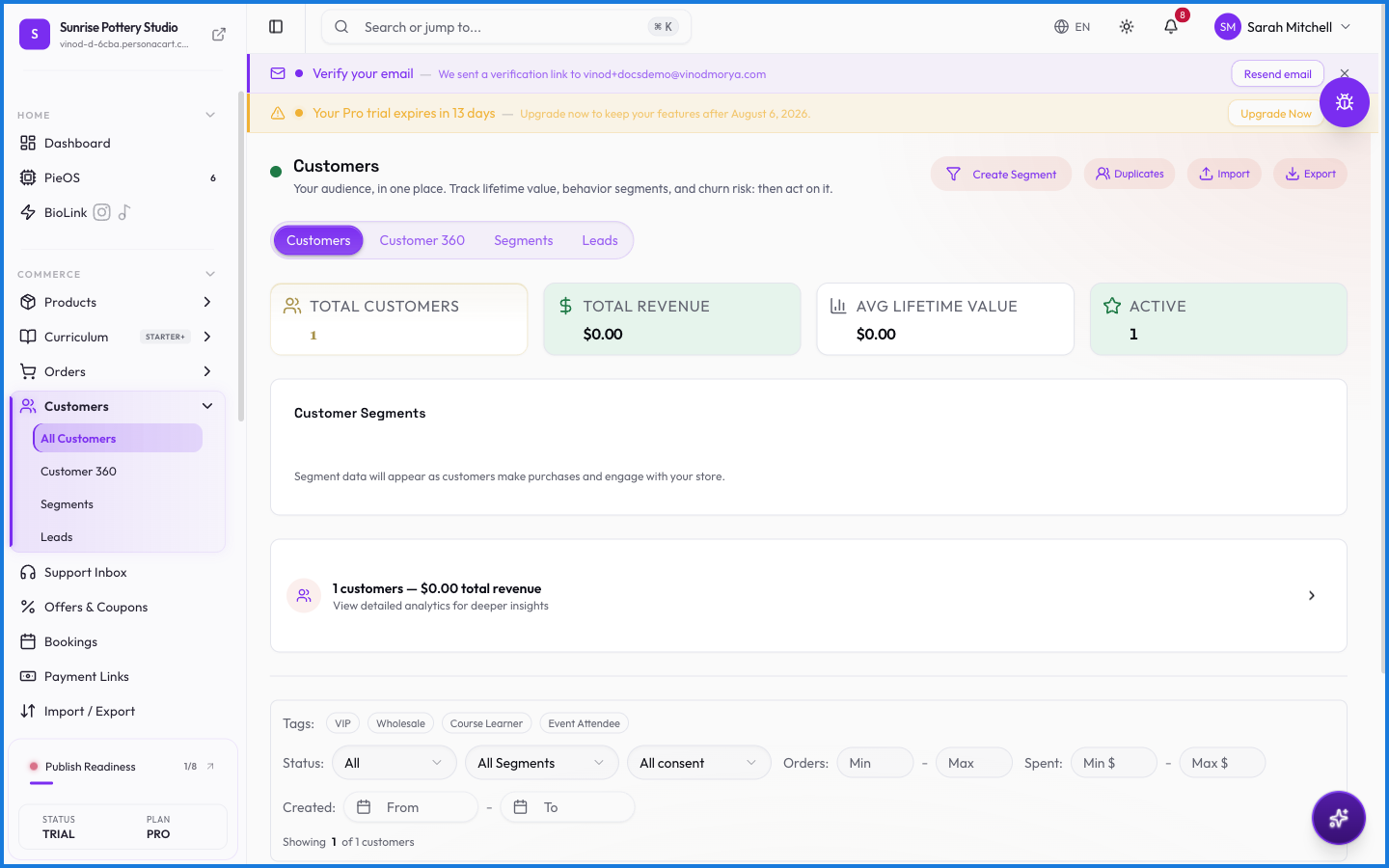
Every buyer and lead lands in your customer list. It's a lightweight CRM: who they are, what they've spent, how many times they've ordered, and how you've tagged them. From here you filter, search, group into segments, and export.
Where to find it
Sidebar → COMMERCE → Customers. Tabs cover the list, Customer 360, Segments, and Leads.
Filtering the list
Two rows of filters sit above the table:
- Tags — clickable badges like VIP, Wholesale, Course Learner, Event Attendee, New, and Repeat Buyer. Click to filter; combine several; click again to remove. Active tags turn green.
- Status (Active / Inactive), Orders (a min–max range), Spent (a dollar min–max), and Created (a date range). A Clear Filters button appears whenever a filter is on.
The search box finds a customer by name instantly. Export downloads the list to a spreadsheet, and Create Segment saves a filtered group you want to reuse.
What a customer record holds
Open a customer to see their contact details, tags, lifetime spend, order count, and history. That detailed view is Customer 360.
What happens — and what doesn't
- Customers are created automatically when someone buys or signs up — you don't add them by hand (though you can import a list).
- Tags are yours to define and apply — they drive filtering and segments but don't change what the customer can do.
- Spend and order counts update as new orders come in, so the filters always reflect current reality.
- Marking a customer inactive hides them from the default view; it doesn't delete their history.
How do customers get added to my list?
Automatically — anyone who places an order or creates an account on your store becomes a customer. You can also import a customer list from a spreadsheet.
What are customer tags for?
Tags are labels you apply (VIP, Wholesale, Repeat Buyer, and so on) to filter your list and build segments. They're organizational — they don't grant or restrict anything by themselves.
Can I export my customer list?
Yes. The Export button downloads your customers as a spreadsheet. Filter first to export only a subset.
Every field on this screen
Every field on the customer screens, including what you can record against a person. Read straight from the live app, so it matches what you see.
| Field | Type | What it accepts | What it does |
|---|---|---|---|
| AI Prompt Instructions | Number | — | |
| Auto-Send | Number | — | |
| Channel | Dropdown | — | |
| Consent | Dropdown | — | |
| Contact Name | Text | — | |
| Customer Behavior Group | Dropdown | — | |
| Description (optional) | Long text | — | |
| Duplicate Customer ID | Text | — | e.g. Paste customer ID to merge into this one |
| Email (optional) | Text | — | |
| Enabled | On/off | — | |
| Field | Dropdown | — | |
| Greeting Message | On/off | — | |
| Keywords (comma-separated) | Long text | — | |
| Lifecycle Stage | Dropdown | — | |
| Match Type | Dropdown | — | Choices: All conditions (AND)Any condition (OR) |
| Max | Text | — | |
| Max $ | Text | — | |
| Min | Text | — | |
| Min $ | Text | — | |
| Offline Message | On/off | — | |
| Op | Dropdown | — | |
| Operator | Dropdown | — | |
| Paste customer ID to merge into this one | Text | — | |
| Priority (lower = higher priority) | Number |
| |
| Regex Pattern | Number | — | |
| Response Template | Number | — | |
| Response Type | Long text | — | |
| Rule Name | Long text | — | |
| Rules * | Dropdown | — | |
| Search by name or email… | Text | — | |
| Search conversations | Text | — | |
| Search segments | Text | — | |
| Segment Name * | Dropdown | — | e.g. e.g. High-Value Customers |
| Select… | Dropdown | — | |
| Subject (optional) | Text | — | |
| Value | Number |
| e.g. min |
36 fields, read from the live app. Which ones you see depends on the product type and your plan.
What this screen looks like in every state
| State | When you'll see it | What you see, and what to do |
|---|---|---|
| Empty | You haven't created anything here yet | “No customers yet” — with a shortcut to create the first one. Nothing is wrong; there's just nothing to show yet. |
| Loading | The screen is fetching your data | A skeleton in the shape of the finished page. It should be brief — if it persists, the load has failed rather than stalled. |
| Error | The data couldn't be loaded | A message with a retry. Retry first: most of these are a dropped request, not a broken store. If it repeats, the outage is upstream and reloading won't help. |
| No access | Your role doesn't include this screen | A permission notice instead of the page. An owner or admin can grant access under Settings → Team. |
This screen has more than one empty state depending on what you're looking at: “No customers yet”, “No orders yet”.
When something goes wrong
These are the messages this screen can show you, and what each one means.
| If you see | What to do |
|---|---|
| CSV file must be under 5 MB | The file was rejected. Check its size and type against what the field accepts. |
| Customer notes endpoint not available. This feature requires a backend update. | The change didn't save. Retry — if it keeps failing, the request isn't reaching the server. |
| Customer tags endpoint not available. This feature requires a backend update. | The change didn't save. Retry — if it keeps failing, the request isn't reaching the server. |
| Please add at least one complete rule | Do what the message asks, then try again — it names exactly what's missing. |
| Please enter a segment name | Do what the message asks, then try again — it names exactly what's missing. |
| Tag already exists | That value is already used. Pick a different one. |
| Too many exports. You can export again in …. | You've hit a plan or rate limit. Wait a moment, or upgrade if you need the higher ceiling. |