Certificates
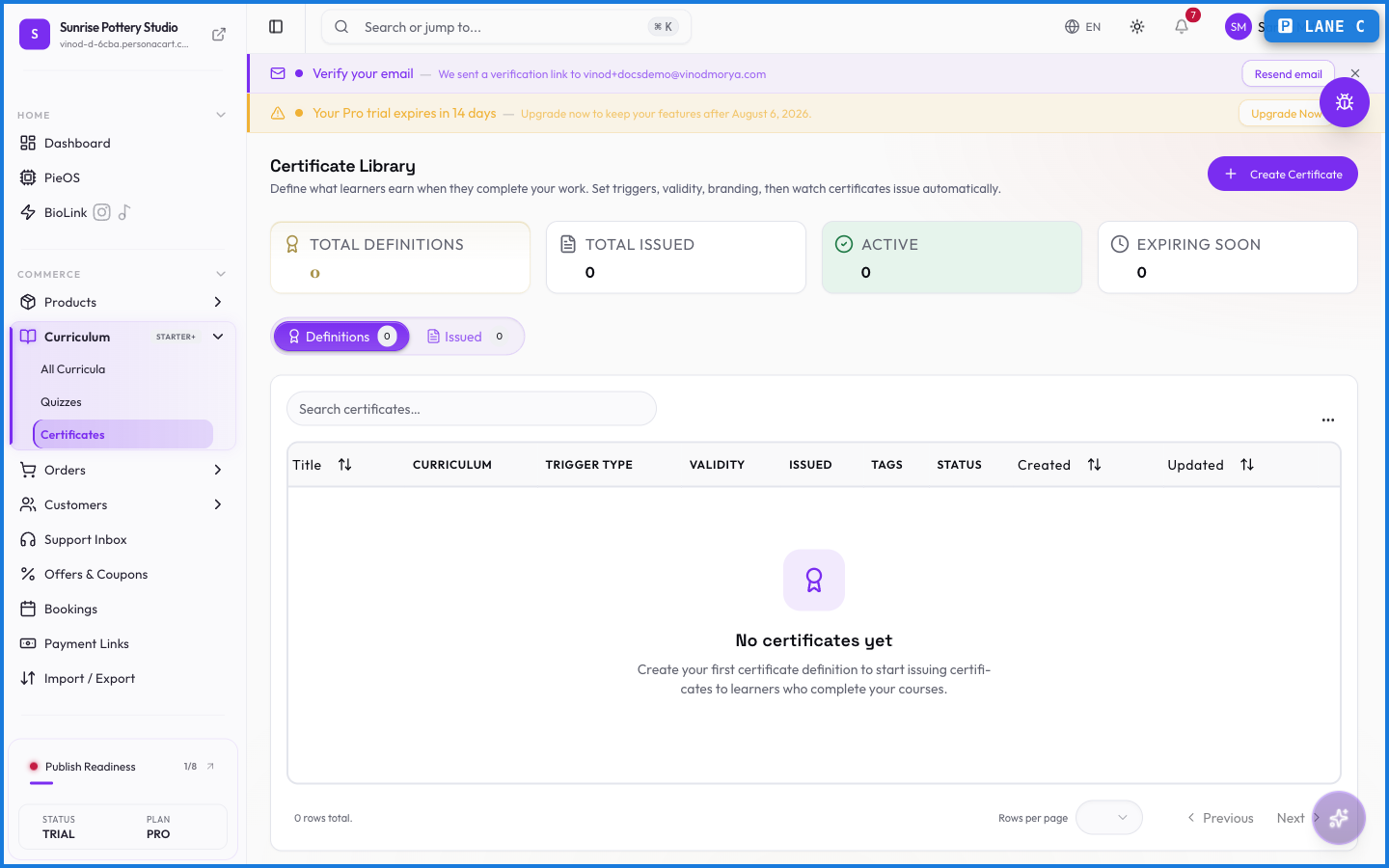
A certificate is the reward at the end of a course — proof a learner finished, which many buyers genuinely want. You design it, set what earns it, and PersonaCart issues it automatically when a learner qualifies.
Pro Certificates are part of the course tools on a paid plan.
Where to find it
Sidebar → COMMERCE → Curriculum → Certificates.
How certificates work
You build a certificate template — its look and the text on it — and set the condition to earn it, usually completing the course (and passing any required quizzes). When a learner meets the condition, the certificate is issued to them automatically, and there's a record of every one issued.
What happens — and what doesn't
- Certificates are issued automatically when a learner meets the completion condition — you don't hand them out one by one.
- Every issued certificate is logged, so there's a verifiable record of who earned what and when.
- The earning condition ties back to course progress and quizzes, so a certificate means the learner actually finished.
How does a learner earn a certificate?
By meeting the condition you set — usually completing the course and passing any required quizzes. When they qualify, PersonaCart issues the certificate automatically.
Is there a record of issued certificates?
Yes. Every certificate issued is logged, giving you a verifiable ledger of who earned each one and when.
Every field on this screen
Every field for designing and issuing a certificate. Read straight from the live app, so it matches what you see.
| Field | Type | What it accepts | What it does |
|---|---|---|---|
| Border Color | Text | — | |
| Border Style | Dropdown | — | Choices: SolidDashedDoubleOrnateRoundedThickRibbonGradient |
| Border Width (px) | Number |
| |
| Brand Color | Text | — | |
| Charge Renewal Fee | On/off | — | |
| Color | Dropdown | — | |
| Content | Number | — | |
| Dynamic Field | Number | — | |
| Font Size | Number |
| |
| Font Weight | Dropdown | — | Choices: NormalBold |
| Grace Period | Number |
| |
| Height | Number |
| |
| Issuer Name | Text | — | |
| Lifetime validity | On/off | — | |
| Minimum Passing Score (%) | Dropdown | — | |
| Position (%) | Number |
| |
| Public Verification Page | On/off | — | |
| Renewal Enabled | Number | — | |
| Renewal Requires Re-assessment | On/off | — | |
| Renewal Window (days before expiry) | Number |
| |
| Require All Modules | On/off | — | |
| Require re-exam for expired | On/off | — | |
| Size (%) | Number |
| |
| Text Align | Dropdown | — | Choices: NormalBoldLeftCenterRightJustify |
| Trigger Type | Dropdown | — | |
| Validity Period | Number |
| |
| Verification URL Format | Text |
| |
| Width | Number |
|
28 fields, read from the live app. Which ones you see depends on the product type and your plan.
What this screen looks like in every state
| State | When you'll see it | What you see, and what to do |
|---|---|---|
| Loading | The screen is fetching your data | A skeleton in the shape of the finished page. It should be brief — if it persists, the load has failed rather than stalled. |
| Error | The data couldn't be loaded | A message with a retry. Retry first: most of these are a dropped request, not a broken store. If it repeats, the outage is upstream and reloading won't help. |
| No access | Your role doesn't include this screen | A permission notice instead of the page. An owner or admin can grant access under Settings → Team. |