Bookings
Bookings is for anything people register for at a set time — a Saturday pottery workshop, a 1:1 coaching call, a weekend retreat. Each one has a date, a capacity, and a location, and this page shows them all with a calendar so you can see what's coming.
Where to find it
Sidebar → COMMERCE → Bookings.
What you see
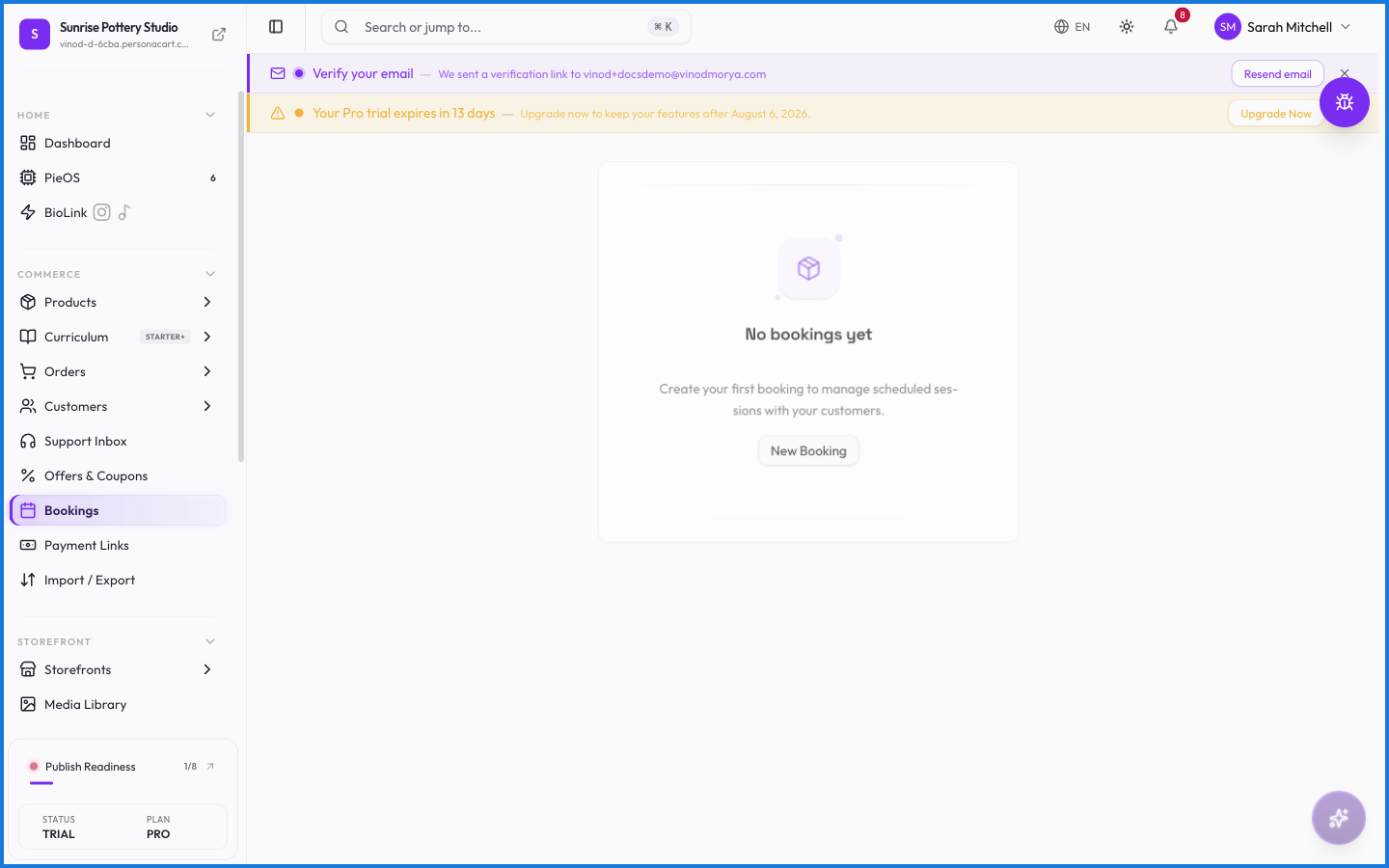
The page is two columns: a list of booking cards on the left, and a small calendar on the right. Each card shows the name, the date, the location (online or a physical address), how many people have registered against capacity (like "8/12"), and a status badge. Click Create Event to add a new one.
How bookings sell
A booking is a product type — buyers reserve a slot the way they'd buy anything else, and paying confirms their spot. Capacity caps registrations, so a full session stops taking bookings on its own.
What happens — and what doesn't
- Capacity is enforced. Once a session fills, it stops accepting new registrations automatically.
- Registrations tie to real orders and customers, so a booking is a sale with a seat attached.
- Online and in-person events both live here; the location field just changes what the buyer sees.
- Cancelling or refunding a booking frees the seat back up.
How is a booking different from a regular product?
A booking is a product type tied to a date and a capacity. Buyers reserve a slot, and paying confirms it. When the session is full, it stops accepting registrations.
What happens when an event reaches capacity?
It stops taking new bookings automatically — you don't have to close it by hand. Cancelling or refunding a booking frees a seat again.
Can I run online and in-person events?
Both. The location field on each event holds an address or 'Online', and buyers see it on the booking page.
Every field on this screen
Every field for a bookable session. Read straight from the live app, so it matches what you see.
| Field | Type | What it accepts | What it does |
|---|---|---|---|
| Also invite (optional) | Text |
| |
| America/New_York | Text | — | |
| Any additional notes | Text | — | |
| Brief description of the booking | Text | — | |
| Customer Name | Text | — | e.g. Full name |
| Date & Time * | Number |
| e.g. 30 |
| Description * | Long text | — | e.g. Brief description of the booking... |
| Duration (minutes) | Number |
| e.g. 30 |
| Email * | Text |
| e.g. [email protected] |
| Filter status | Dropdown | — | |
| Format | Dropdown | — | |
| Full name | Text | — | |
| Invitee email | Text |
| e.g. [email protected] |
| New Date | Date | — | |
| New Date & Time | Text | — | e.g. e.g. America/New_York |
| New Time | Date | — | |
| Notes | Long text | — | e.g. Any additional notes... |
| Search bookings | Text | — | |
| Search by title | Text | — | |
| Status | Dropdown | — | |
| Timezone | Text | — | e.g. e.g. America/New_York |
| Title * | Long text | — | e.g. e.g. 1-on-1 Coaching Session |
22 fields, read from the live app. Which ones you see depends on the product type and your plan.
What this screen looks like in every state
| State | When you'll see it | What you see, and what to do |
|---|---|---|
| Empty | You haven't created anything here yet | “No bookings found” — with a shortcut to create the first one. Nothing is wrong; there's just nothing to show yet. |
| Loading | The screen is fetching your data | A skeleton in the shape of the finished page. It should be brief — if it persists, the load has failed rather than stalled. |
| Error | The data couldn't be loaded | A message with a retry. Retry first: most of these are a dropped request, not a broken store. If it repeats, the outage is upstream and reloading won't help. |
| No access | Your role doesn't include this screen | A permission notice instead of the page. An owner or admin can grant access under Settings → Team. |
When something goes wrong
These are the messages this screen can show you, and what each one means.
| If you see | What to do |
|---|---|
| Could not invite that person | Retry the action. If it keeps happening, contact support with what you were doing. |
| Could not remove that person | Retry the action. If it keeps happening, contact support with what you were doing. |
| Duration cannot exceed 24 hours (1440 minutes) | You've hit a plan or rate limit. Wait a moment, or upgrade if you need the higher ceiling. |
| Duration must be a positive number | The value isn't in the expected format. Check it against the field's rules above. |
| Failed to cancel booking | The change didn't save. Retry — if it keeps failing, the request isn't reaching the server. |
| Failed to complete booking | The change didn't save. Retry — if it keeps failing, the request isn't reaching the server. |
| Failed to confirm booking | The change didn't save. Retry — if it keeps failing, the request isn't reaching the server. |
| Failed to create booking | The change didn't save. Retry — if it keeps failing, the request isn't reaching the server. |
| Failed to mark booking as no-show | The change didn't save. Retry — if it keeps failing, the request isn't reaching the server. |
| Failed to reschedule booking | The change didn't save. Retry — if it keeps failing, the request isn't reaching the server. |
| Failed to update check-in | The change didn't save. Retry — if it keeps failing, the request isn't reaching the server. |
| Fix the invitee list before saving | Retry the action. If it keeps happening, contact support with what you were doing. |
| Invalid timezone. Use IANA format (e.g. America/New_York) | The value isn't in the expected format. Check it against the field's rules above. |
| No upcoming bookings to export | Retry the action. If it keeps happening, contact support with what you were doing. |
| Please select a new date and time | Do what the message asks, then try again — it names exactly what's missing. |
| Rescheduled date must be in the future | Retry the action. If it keeps happening, contact support with what you were doing. |
| Scheduled date and time is required | A required field is blank. Fill it in and save again. |
| Scheduled date must be in the future | Retry the action. If it keeps happening, contact support with what you were doing. |
| Title is required | A required field is blank. Fill it in and save again. |