Downloads
In short: Find the digital products you bought, download each file, and see how long files stay available.
Bought a digital product, such as a guide, a template or a set of files? It lives on the My Downloads page of your account, ready whenever you need it. No hunting through email for a link: it is always here, and each file has its own Download button.
Where to find it
Sign in, then open My Account and choose Downloads. On the standard menu it sits in the My Library group together with Courses and Certificates. On the Parent app menu it is inside Account. See Parent account: menu and Home for both menus.
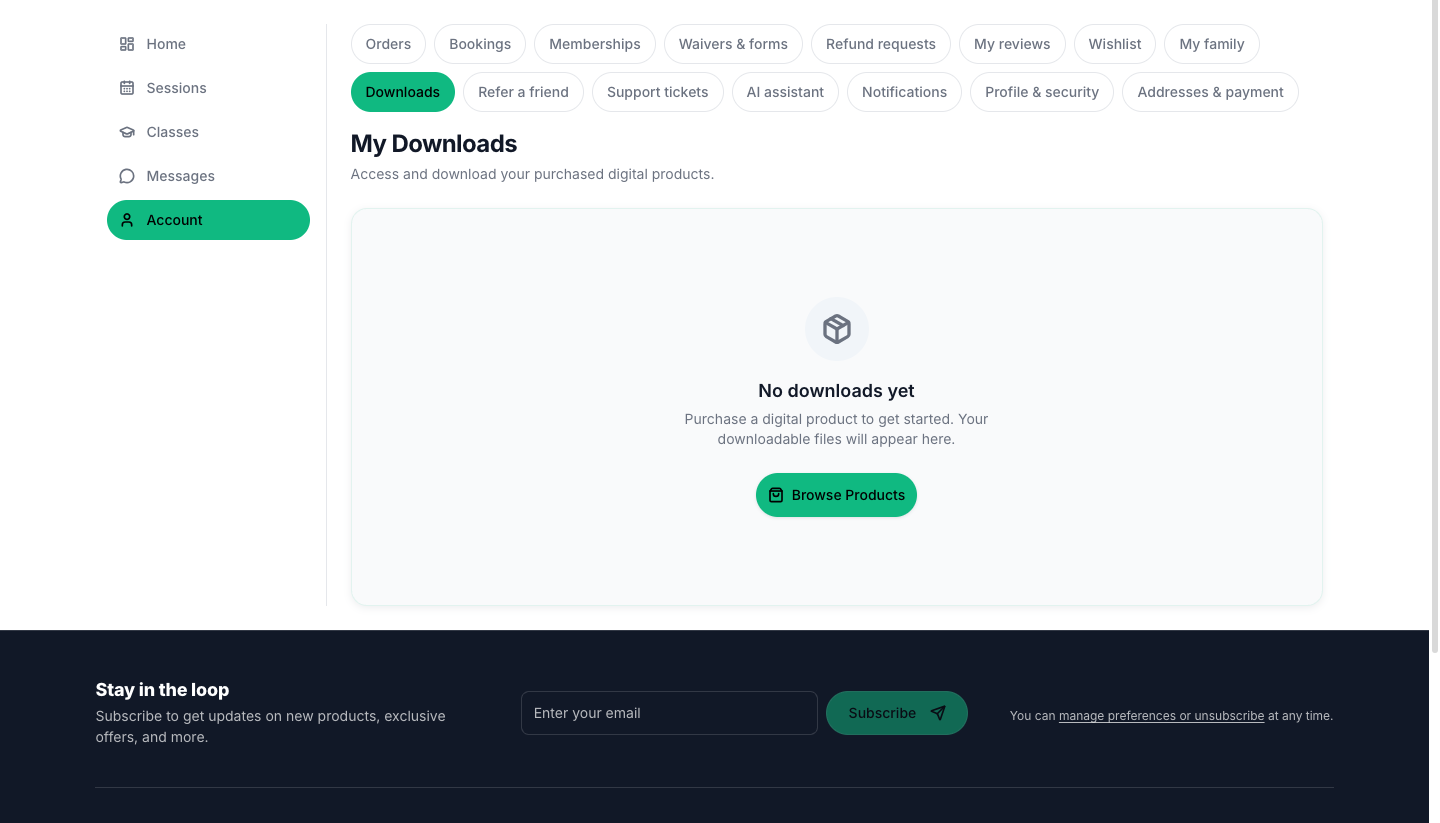
Downloads appears in the menu once you have bought at least one digital product from that store. Until then the menu stays short. The store owner can also rename or hide menu pages, so a store may label it a little differently.
What the page shows
The page is titled My Downloads, with the line "Access and download your purchased digital products." Each purchase is one card.
| On the card | What it means |
|---|---|
| Product picture and name | The product you bought. The picture is shown when the store added one. |
| Order | The order number the purchase belongs to, for example ORD-00015. |
| Purchased | The date you bought it. |
| Expires or Expired with a date | Shown only when the product has a hard end date. It turns red once that date has passed. |
| A badge such as 1 file or 3 files | How many files the product contains. |
| Access line under the badge | How long you can still re-download: Lifetime access, N days left to re-download, Last day to re-download, or Re-download window closed. When a product has several files, the card shows the soonest deadline among them. |
| Buy again | Appears only when the access has ended. It opens the product page so you can get it again. |
| Hide files / Show files | Folds the file list away or opens it. Files are shown by default. |
Inside the file list, every file is one row:
- The file name and its size, for example 2.4 MB.
- The same access line, for that one file (hidden on very narrow phone screens; the card still shows it).
- A Download button. When the access has ended it changes to a grey Expired button that cannot be pressed.
Download a file
- Open My Account → Downloads.
- Find the product. If the file list is closed, press Show files.
- Press Download on the file you want.
- A message says Download started with the file name, and your browser saves the file as usual. Look in your browser's downloads list if you do not see it right away.
Press Download again on any day inside your access period to get the file again, for example on a new phone or computer.
If a message says Download failed, press Download once more. If it keeps failing, write to the store from Support tickets.
How long do files stay available
Access to a file is a time window, not a count of downloads. You can download as often as you like while the window is open.
- Lifetime access means the file never expires.
- N days left to re-download counts down. On the last day the line reads Last day to re-download.
- Re-download window closed means the time is over. The button reads Expired, and Buy again takes you back to the product page.
The store owner decides the window for each product, so two products from the same store can differ.
Empty page
Before your first digital purchase the page says No downloads yet and "Purchase a digital product to get started. Your downloadable files will appear here." The Browse Products button opens the store.
Good to know
- Downloads belong to your account with that store. If you buy from another PersonaCart store, that store has its own list.
- Physical goods, bookings and courses are not in Downloads. They live under Orders, Bookings and Courses and certificates.
- On a product you already own, the store's product page can link straight to its files here. The matching card is then outlined in the store colour.
- A test purchase made by the store owner while setting up shows a label saying it is test access, and it ends on its own.
Other ways in
- Right after you pay, the confirmation page has Download Now, and your confirmation email has the access link.
- On an order, the item's Download button gets the file ("Preparing download..."). A product with several files opens a Download files list, one button per file.
Questions
Where do I find the digital products I bought on PersonaCart?
In your account, under Downloads (the page is titled My Downloads). Every digital purchase is tied to your account there, so you do not need to keep a one-time email link.
Can I download a purchase more than once?
Yes, as often as you like while the access window is open. The card tells you how long that is: Lifetime access, N days left to re-download, or Last day to re-download.
The button says Expired. What now?
The re-download window for that file has closed. Press Buy again on the card to open the product page and get it again, or write to the store from Support tickets if you think the window should still be open.
I cannot see Downloads in my menu.
The entry appears once you have bought a digital product from that store. If you have, check that you are signed in with the same email you used at checkout.
What does the badge with a number of files mean?
It is the number of files in that product. Press Show files to see each one with its size and its own Download button.
Related
Part of Buying from a store · Product page: PersonaCart features