Your subscriptions
In short: Manage a membership or subscription you bought on a PersonaCart store: update your card, pause, resume, cancel, reactivate and see renewals.
If you're on a recurring plan from a store — a membership, a subscription product — it lives in your account. That's where you see what you're subscribed to and manage it.
Where to find it
Sign in → My Account → Memberships. The page itself is titled Memberships & Subscriptions: "Manage your active memberships and subscription boxes". On the standard menu, Memberships is a section of its own. On the Parent app menu it is one of the small buttons across the top of Account. See Parent account: menu and Home.
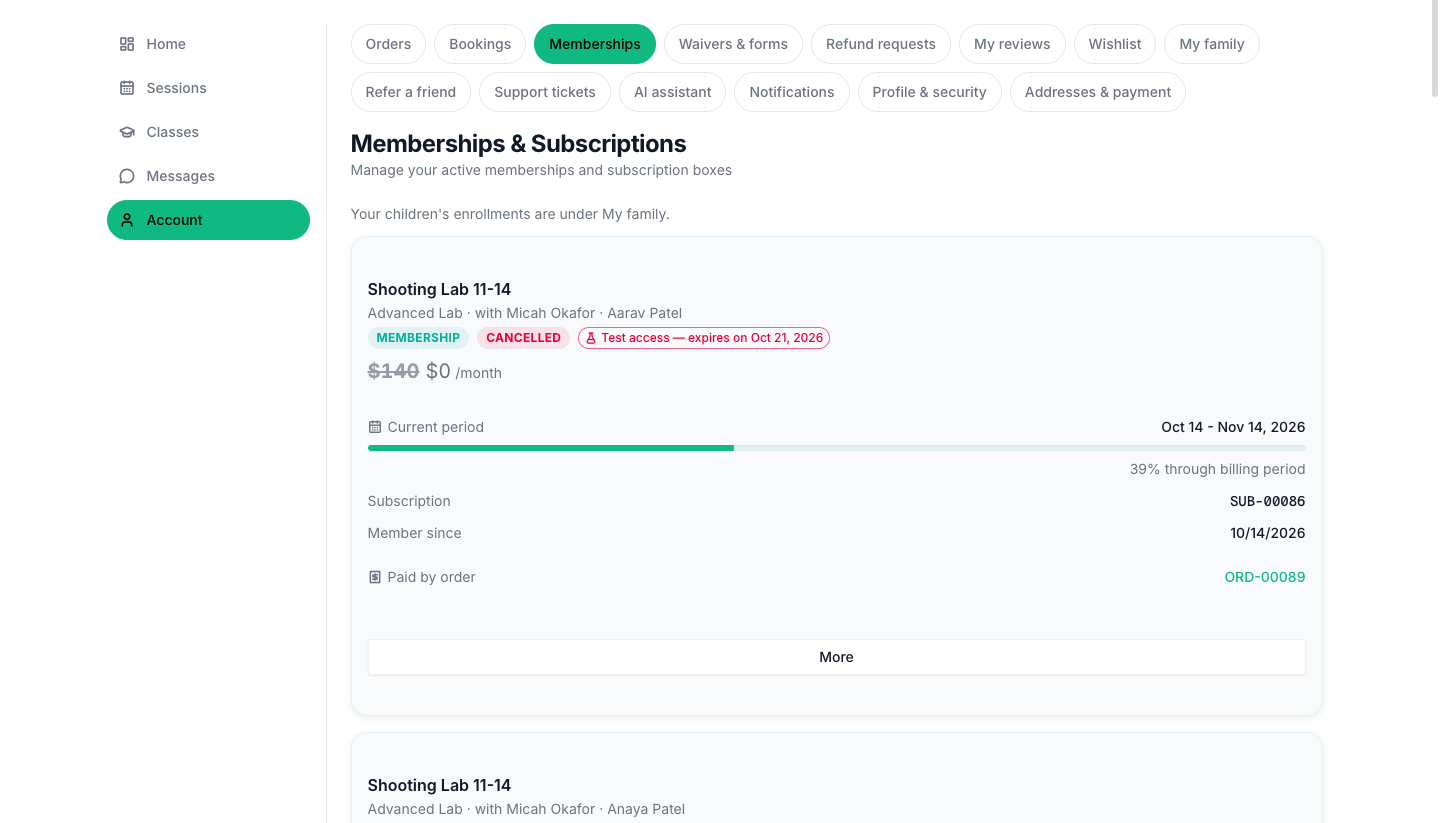
The Memberships item appears once you have at least one subscription. An old link ending in /account/memberships takes you to the same page.
What each plan card shows
| Part | Details |
|---|---|
| Name and picture | The plan, with its type badge: Membership or Subscription Box. On an Academy store, the child and the group it is for. |
| Status badge | Active, Paused, Cancelled, Cancelling, Past Due, Expired, or Free trial while a trial runs. |
| Price | The amount and the billing period: per month, quarter or year. |
| What's included | The plan's benefits, as a list, when the store wrote any. |
| Current period | The start and end of this billing period, with a bar and "40% through billing period". |
| Trial ends | The date a free trial ends, while a trial runs. |
| Next billing date and Next renewal amount | Shown on an active plan that has not been cancelled. |
| Subscription | The plan's short reference number. |
| Member since | The day you started. |
| Paid by order | The order that paid for it, as a link (for example ORD-00015). It opens that order. |
The buttons
| Button | When you see it | What it does |
|---|---|---|
| Update card | Every plan that is not Cancelled or Expired, and for a Past Due plan too | Opens Update payment method. |
| Pause | An active plan whose store allows pausing | Pauses the plan. You see "Subscription paused successfully". |
| Resume | A paused plan | Starts it again. "Subscription resumed successfully". |
| Cancel | An active plan that is not for a child (under More) | Opens the cancel box. |
| Reactivate | A plan you have already cancelled but that has not yet ended | Undoes the cancel. "Subscription reactivated successfully". |
| View renewal history | Every plan (under More) | Opens Renewal history. |
| Change group | A plan tied to a class group (under More), when it is not for a child | Lets you move to another group. |
| Manage in (name)'s page | A plan that is for a child on an Academy store | Opens the child's page. |
Change Plan is not offered on this page yet.
Update card
The window is Update payment method: "Enter a new card to use for future renewals of (name)."
- Wait for "Preparing secure card form…".
- Enter the new card.
- Press Save card (it reads Saving… while it works).
You see "Payment method updated". The note under the form says "Payments are securely processed by Stripe." If a plan uses a payment provider that cannot do this, the window says "Updating the payment method isn't supported for this payment provider. Contact the seller for help." If the card could not be saved: "Could not save the new card. Please try again." Close leaves without saving.
A Past Due plan also shows a red line: "Your last payment failed. Please update your payment method to keep your subscription active." Update the card and the next try goes through.
Cancelling
- Under More, press Cancel.
- The box Cancel Subscription asks: "Are you sure you want to cancel your (name) subscription? You'll still have access until the end of your current billing period." Some plans end right away, and then it reads "Your access will end immediately."
- On a plan that ends right away and has children on the account, Whose class seats should this release? appears. Choose Just me or Everyone.
- Press Yes, Cancel, or Keep Subscription to stay.
You see "Cancelled. You keep access until (date)." The badge changes to Cancelling, a note shows the date, and Reactivate appears. For an Academy class: "Cancelled. Your enrollment ends on (date); you keep it until then."
If the plan's payment provider cannot undo a cancel, Reactivate is replaced by "Reactivating isn't supported for this payment provider. Contact the seller, or subscribe again once this period ends."
Renewal history
View renewal history opens Renewal history, one row per billing cycle: the date, the amount and a status of Paid, Failed (with the reason the bank gave) or Pending. With no cycles yet it says "No billing cycles yet". Close returns to the page.
No plans yet
No active memberships: "You don't have any memberships or subscriptions yet." with a Browse Memberships button to the store.
What happens, and what doesn't
- Every recurring plan you're on with a store shows here, tied to your account.
- This is the buyer's own view, separate from the store owner's subscriber management.
- One-time purchases aren't subscriptions; those sit under Orders.
- Your children's class places on an Academy store are managed from each child's page. A hint on this page says "Your children's enrollments are under My family."
- A plan you cancel keeps working until the end of the period you paid for, unless the store ends it at once.
- Pause is the store's choice. On a class that does not allow it, you see "This class does not allow pausing. Ask the store, or use Can't make it for a single session."
- Free trial plans show the date the trial ends under Trial ends.
What you can do
| Button | What it does |
|---|---|
| Pause | Stop billing for a while and keep your place ("Subscription paused successfully") |
| Resume | Start again after pausing |
| Cancel | Stop the subscription. See below |
| Reactivate | Undo a cancellation you made earlier, while you still have access |
| Update card | Replace the card used for future renewals |
Cancel
- Press Cancel. The box reads "Are you sure you want to cancel your ... subscription? You'll still have access until the end of your current billing period." For some plans: "Your access will end immediately."
- Press Yes, Cancel, or Keep Subscription.
- The card then says "Cancelled. You keep access until ...", and shows Cancelling until that date.
For a class that fills a seat, a Whose class seats should this release? choice appears: Just me or Everyone.
Update the card
- Press Update card (the Update card button also appears on a Payment failed warning: "Your last payment failed. Please update your payment method to keep your subscription active.").
- Enter the new card in the secure form and press Save card. You see "Payment method updated".
Pause
Not every plan can be paused. When a class does not allow it: "This class does not allow pausing. Ask the store, or use Can't make it for a single session."
Good to know
- If a payment provider does not support changing the card or reactivating from here, the page says so and tells you to contact the seller.
- Your children's enrollments are under My family; use Manage in (name)'s page for those.
- Store credit applies to your first payment only; renewals are charged at full price.
- This is your own view. The store owner manages all subscribers from their side.
Questions
Where do I manage a subscription I bought on PersonaCart?
In your account, under Memberships. That page lists the recurring plans tied to your account so you can review, pause, update the card, or cancel.
How do I update the card for my membership?
Open Memberships, press Update card on the plan, enter the new card and press Save card. Renewals use the new card from then on.
I cancelled by mistake. Can I get the plan back?
Yes, while the paid period has not ended. The plan shows Cancelling with a Reactivate button. Press it and renewals continue.
Why can't I see Pause?
Pause is only shown when the store allows it for that plan.
Will I lose access when I cancel?
Usually not right away. Most plans say "You'll still have access until the end of your current billing period." Some plans end access immediately, and the cancel box tells you which.
My payment failed. What now?
Press Update card on the warning and save a working card. Keep the plan active that way instead of letting it lapse.
Related
Part of Buying from a store · Product page: PersonaCart features