Your bookings
In short: See the workshops, classes and one-to-one sessions you booked on a PersonaCart store, and join, move or cancel them from your account.
Booked a workshop, a class, or a one-to-one session? It shows up under Bookings in your account, so you always know what's coming up and when.
Where to find it
Sign in → My Account → Bookings. On the standard menu, Bookings is a section of its own. On the Parent app menu it is one of the small buttons across the top of Account (the Sessions tab is a different page, see Parent account: menu and Home).
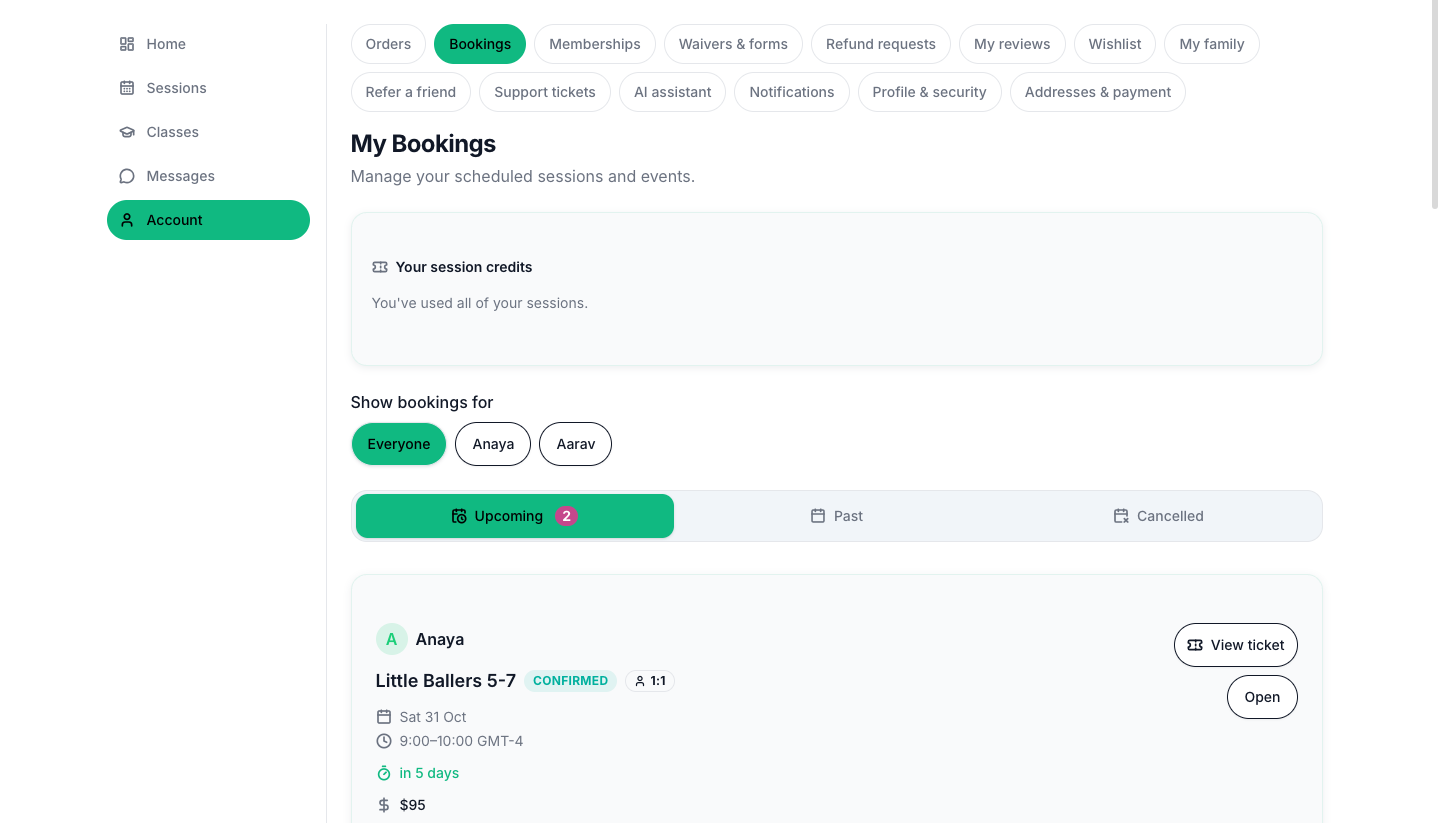
The Bookings item appears once you have at least one booking or a session credit. Before that, it is hidden.
The page, from top to bottom
The page is called My Bookings: "Manage your scheduled sessions and events."
- Your session credits (only if you hold a prepaid pack). See Session credits.
- A bar that says "Moved to (new time)." with Undo and Close, right after you move a booking.
- Show bookings for (only if you have two or more children on your account): buttons Everyone and one per child. Press one to see only that child's sessions.
- Three tabs: Upcoming (with a count), Past and Cancelled.
Which tab a booking sits in
| Tab | Statuses it holds |
|---|---|
| Upcoming | Pending, Confirmed, Scheduled, Rescheduled |
| Past | Completed, No Show |
| Cancelled | Cancelled |
Every booking lands in exactly one tab, so nothing you paid for goes missing.
Empty tabs
- No upcoming bookings: "You don't have any scheduled sessions. Browse available events and coaching sessions to book your next one."
- No past bookings: "You haven't completed any bookings yet. Your past sessions will appear here."
- No cancelled bookings: "You don't have any cancelled bookings. Great!"
If the list cannot load, you see "Failed to load bookings. Please try again." with Try again.
What a booking card shows
| Part | Details |
|---|---|
| Child chip | On an Academy store, the child the booking is for. |
| Name and badges | The product name, a status badge (Pending, Confirmed, Scheduled, Completed, Cancelled, Rescheduled, No Show) and a type badge: Group or 1:1. |
| Date and time | The day, and the start and end time, in the booking's own time zone. |
| Previous time | After a reschedule, the time it was moved from. |
| Countdown | For upcoming bookings: "in 3 days", "in 2 hours", "in less than an hour" or Starting now. |
| Where | An in-person session shows the venue and an online one shows the meeting tool. A session that has a set place shows its address, and a hybrid one shows both the room and the link. |
| Price | What you paid. A booking paid from a pack says "Paid with 1 session credit" instead of a price. |
| Refund | After a cancel: "(amount) refunded", "(amount) refund pending", Refund failed, No refund recorded, or "1 session credit returned". When no refund applies, the store's own sentence explains why. |
| Cancel before | The last moment you can still cancel or change the time, when the store set one. |
The buttons on a card
| Button | When you see it | What it does |
|---|---|---|
| View ticket | Any booking that is not cancelled | Opens your pass with its QR code, plus Add to calendar. See Join links, rescheduling and cancelling. |
| Join Meeting | An upcoming online booking with a link | Opens the meeting in a new tab. |
| Get Directions | An upcoming in-person or hybrid booking with a venue | Opens the map in a new tab. An in-person booking never shows Join Meeting. |
| Reschedule | The store allows moving this booking | Opens the time picker. |
| Cancel | The store allows cancelling it | Opens the cancel choices. |
| Invite a guest | An upcoming Group booking | Emails a friend the meeting details. |
| Open | A child's booking on an Academy store | Opens the child's page on the Sessions tab. A cancelled class session also shows Open, which leads to make-up options. |
For a child's booking, Reschedule and Cancel are not on the card. Use the child's page and Can't make it instead, see Absences, make-ups and ending a place.
- Opening an order's View ticket button takes you here with that pass already open, even if the session is already in the Past tab.
- Times are shown in the booking's own time zone, so a session reads the same wherever you open it.
- Bookings are scheduled time, separate from products under Orders and files under Downloads.
Booking a session
On the store, a bookable product shows Book Now. You choose:
- Select a Time from the open slots. If the store has more than one coach or room you first Choose your coach (or Any available); a coach with no free time shows "Not available".
- Your Details: Name, Email and Notes (optional) ("Anything we should know?"). Signed-in buyers are filled in.
- Press Confirm Booking for a free session, or Book & Pay for a paid one, which takes you through checkout.
A confirmation says "Booking Confirmed!" with Join Meeting or View ticket and Book Another. An email with a calendar invite follows. A parent booking for a child picks who it is for at the cart ("Choose who this is for.").
The meeting link
The Join link opens a page that shows Your meeting is scheduled, a countdown "Link activates in ...", the host, the time and Add to calendar. When it is time it opens the meeting ("Your meeting is starting"). An old or wrong link says so, a finished one says "This meeting has ended", and a cancelled one "This meeting was cancelled. Contact the host for details."
Questions
Where do I see the sessions I booked on PersonaCart?
In your account, under Bookings — and your dashboard shows upcoming ones at a glance. Each booking is tied to your account with its date and time.
Where is the link to join my online session?
On the booking's card in the Upcoming tab, press Join Meeting.
Why can't I see Reschedule or Cancel?
Those two buttons depend on the rules the store set for that session. When one is missing, the store has closed that option or the deadline has passed. The Cancel before line on the card tells you the deadline.
Where did my cancelled booking go?
Open the Cancelled tab. The card shows what happened to the money under Refund.
Related
Part of Buying from a store · Product page: PersonaCart features