BioLink insights and audience
In short: See how your BioLink performs (views, clicks, leads, sales) and who signed up. Email your leads or export the list.
Two tabs of BioLink Studio tell you what is happening on your page. Insights shows the numbers: how many people looked, what they tapped, and what they bought. Audience shows the people: everyone who left their details through a form, a booking, a purchase or a newsletter sign-up, with a way to email them.
Where to find it
Sidebar → HOME → BioLink → Insights and HOME → BioLink → Audience.
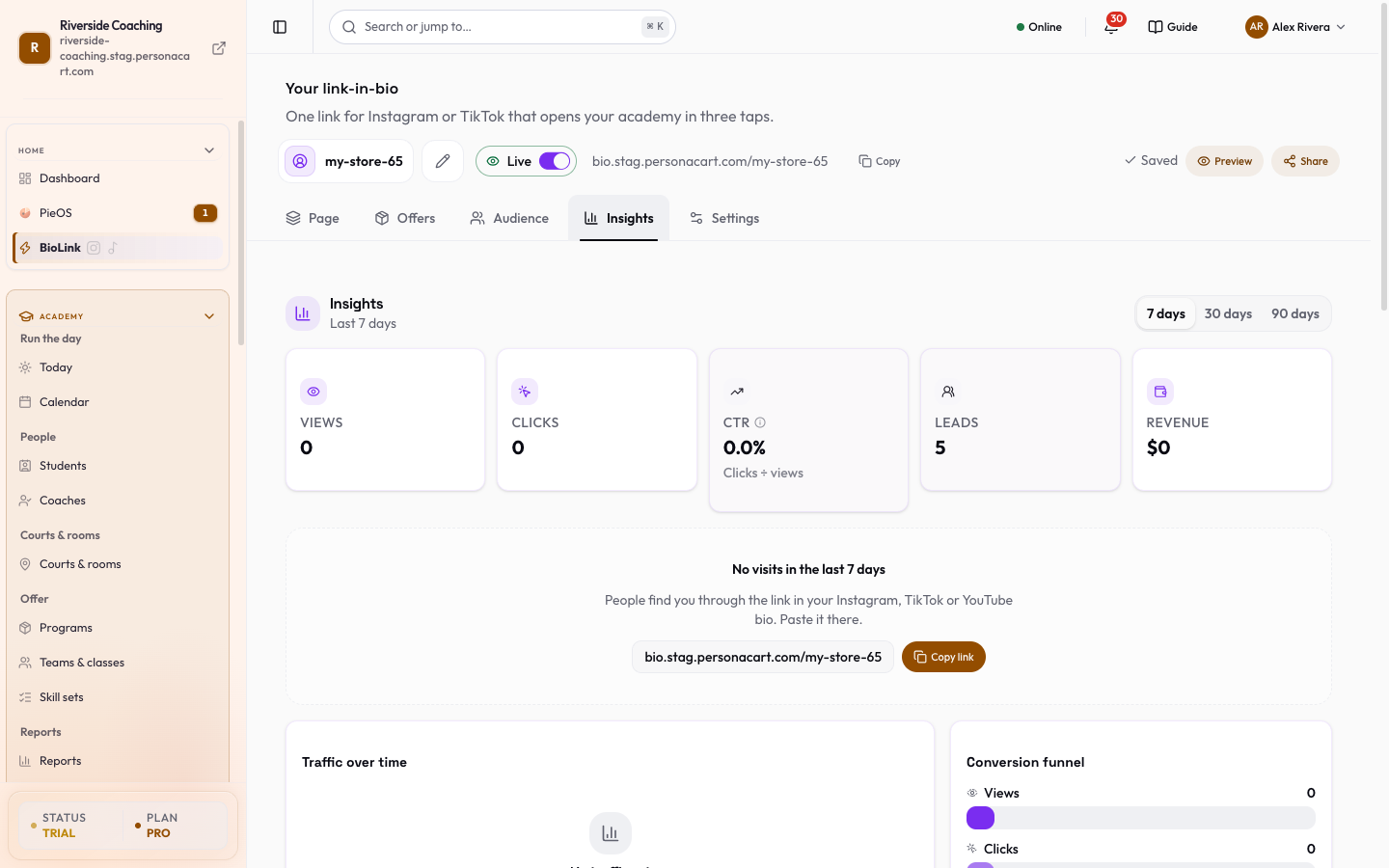
Insights
Pick a window at the top: 7 days, 30 days or 90 days. Everything below follows that window.
The five numbers
| Card | What it counts |
|---|---|
| Views | Times your page was opened. |
| Clicks | Taps on your blocks. |
| CTR | Clicks divided by views. The page explains it on the card: total link clicks divided by total page views, never above 100%. |
| Leads | People who left their details through a block. |
| Revenue | Money from sales that came through your page. |
If nobody has visited in the window, a card says No visits in the last N days, reminds you that people find you through the link in your Instagram, TikTok or YouTube bio, and gives you a Copy link button.
The charts and tables
- Traffic over time: views and clicks day by day. Hover a day to read it.
- Conversion funnel: views, then clicks, then conversions, with the rate from one step to the next.
- Top sources: where visitors came from. Direct / none means they typed the link or came from an app that does not say where.
- Top locations and Devices: countries and Mobile, Desktop or Tablet.
- Per-block performance: one row per block that had clicks or revenue in the window, with Views (a dash where views are not measured for a block), Clicks, CTR (a dash when there are no views to divide by) and Revenue. Press a column title to sort by it. Open a row to see that block's totals for the window, including Orders. The detail sheet shows totals only; per-day history for a single block is not tracked.
- Sales: your most recent orders, newest first, so you can see who paid you. Columns are Date, Buyer, Item, Amount, Status (Paid, Unpaid, Refunded, Part refunded or Failed) and Delivery (Ready or Pending). Export CSV downloads the list. Anything someone buys, books or tips shows up here.
If the numbers cannot be loaded, the tab says so and offers Try again. That is a loading problem, not zero visitors.
Audience
Open the Audience tab. The People view lists your leads. A line at the top sums it up: how many people, how many are OK to email, and where most came from.
The list
Each row shows the person's name and email, Came from (a source badge) and when they were Captured (for example "Just now", "Yesterday", "3d ago"). A badge shows Opted in or No opt-in for marketing emails.
Sources are Lead Magnet, Booking, Membership, Product, Newsletter, Purchase and BioLink page. Press Filter to narrow the list by source (All, then one per source), or use Search name, email or location. Clear filters resets them. The footer reads "Showing X of Y".
Open the row menu for a person to Email them or Copy email.
Beside the list are small cards for Top referrers, Top locations and Devices.
Export
Export CSV (and Export in the footer) downloads the list with Name, Email, Source and Date. The screen confirms how many leads were exported.
Email your leads
Press Email them to open Run a campaign: "Email your captured leads: pick a segment, write, then send."
Old contacts who have not confirmed
If some older contacts were captured before email confirmation existed, a banner says "N old contacts have not confirmed their email yet. They will not receive campaigns until they do." Press Ask them to confirm to send each of them one email asking them to confirm. The dialog lists the rules: up to a daily number of these emails, each person asked at most once every 7 days, and people who unsubscribed, bounced or complained are skipped. A result summary shows how many were sent, skipped or failed and how many are left for today.
Sending a campaign sends real email and cannot be unsent. Only leads who opted in to marketing emails receive it, and the final count is worked out when you press send. Check the subject and message first.
Leads include names and email addresses. Export files should be kept somewhere safe and shared only with people who need them. If your visitors may include children, or you collect anything about health, ask only for what you need and make sure you have the consent your local law requires.
Questions
Why do my Insights show nothing?
No one has visited in the window you picked. Share your link in your bio, then check again. If the tab says it could not load, press Try again.
Who receives my email campaign?
Only leads who opted in to marketing emails. The final count is worked out when you press send.
Can I download my leads?
Yes. Press Export CSV on the Audience tab to get Name, Email, Source and Date.
What does Direct / none mean under Top sources?
The visitor typed your link or came from an app that does not say where they came from.
Related
Part of BioLink: a link-in-bio page that sells · Product page: BioLink