BioLink
In short: BioLink is the one link for your Instagram or TikTok bio: a small page that holds your links, products, bookings and sign-up forms.
BioLink is the one link you put everywhere: your Instagram or TikTok bio, a video description, a flyer, a QR code. It opens a small page that holds your links, your products, your bookable sessions and your sign-up forms, in the order you choose. You build and manage all of it in BioLink Studio.
What is BioLink?
BioLink is a link-in-bio page that can sell, not just link out. A parent taps your link, picks a session and pays. Sign-up forms collect emails, and insights show clicks and sales.
Video transcript
In this video, you will learn biolink. You will see your page, offers, and insights. Biolink is one link for Instagram or Tik Tok. This checklist shows three pieces to finish. This card lists buttons with no clicks in 30 days. Archive hides one but keeps every number. Open offers. This table lists everything people can buy or book from you with its price. Show your store products in a shop block. Buyers tap one and land on its store page. Open insights. The funnel shows views, clicks, and conversions. So you see where visitors drop off. Compare 7, 30, or 90 days. This table shows views, clicks, and revenue for every block. So you know which buttons earn. So build your blocks, publish, then check insights weekly. Sales appear here when someone buys. Thank you for watching Persona Kart. Subscribe for the next tutorial.
What you can do
- Build your page from blocks: links, products, bookable sessions and sign-up forms
- Add your photo, name and tagline in the header, and pick a design
- Sell and take bookings right from the page
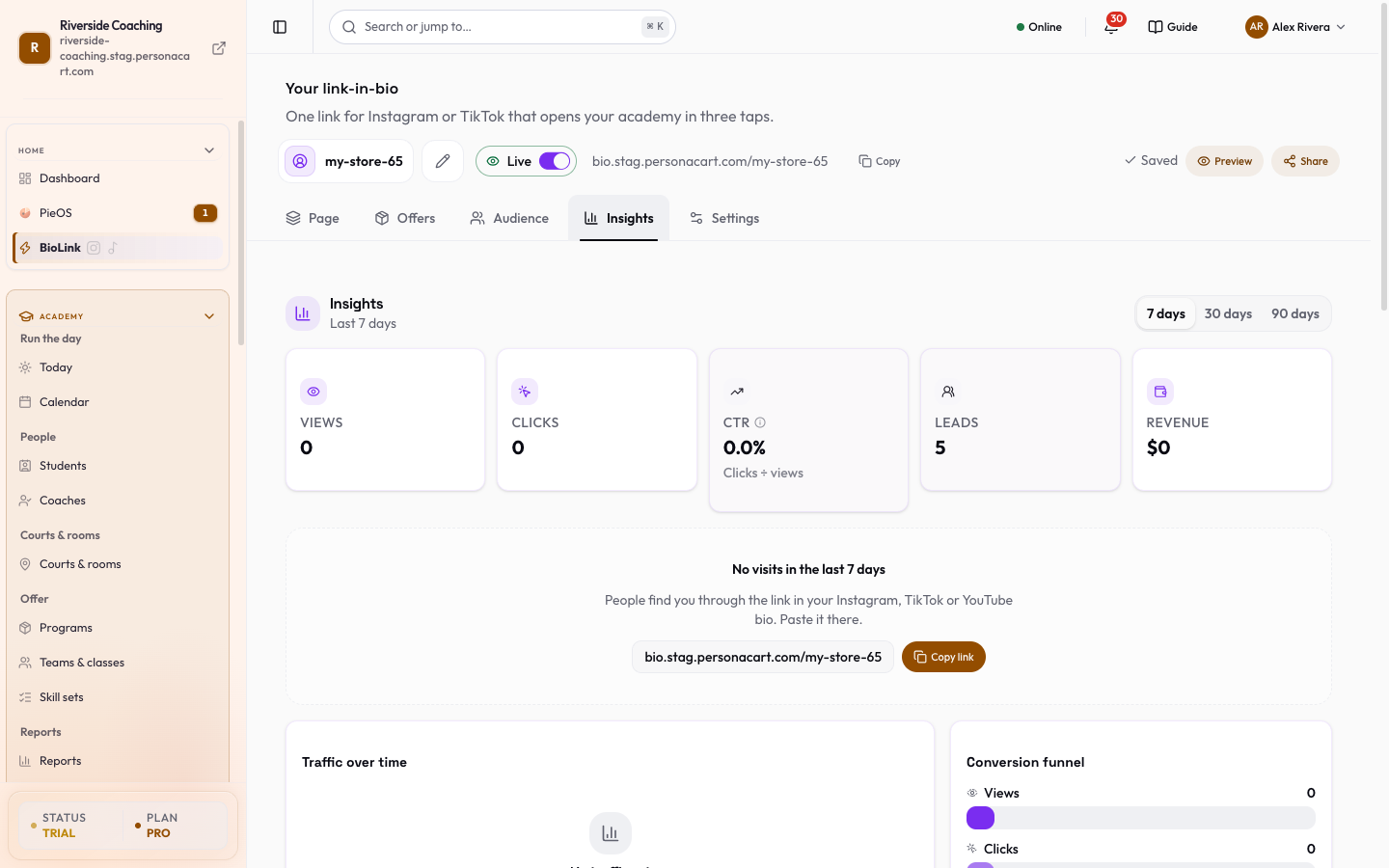
- See views, clicks, sales and sign-ups in Insights and audience
- Approve buyer reviews
- Set your address, payments, receipts and legal pages in Settings
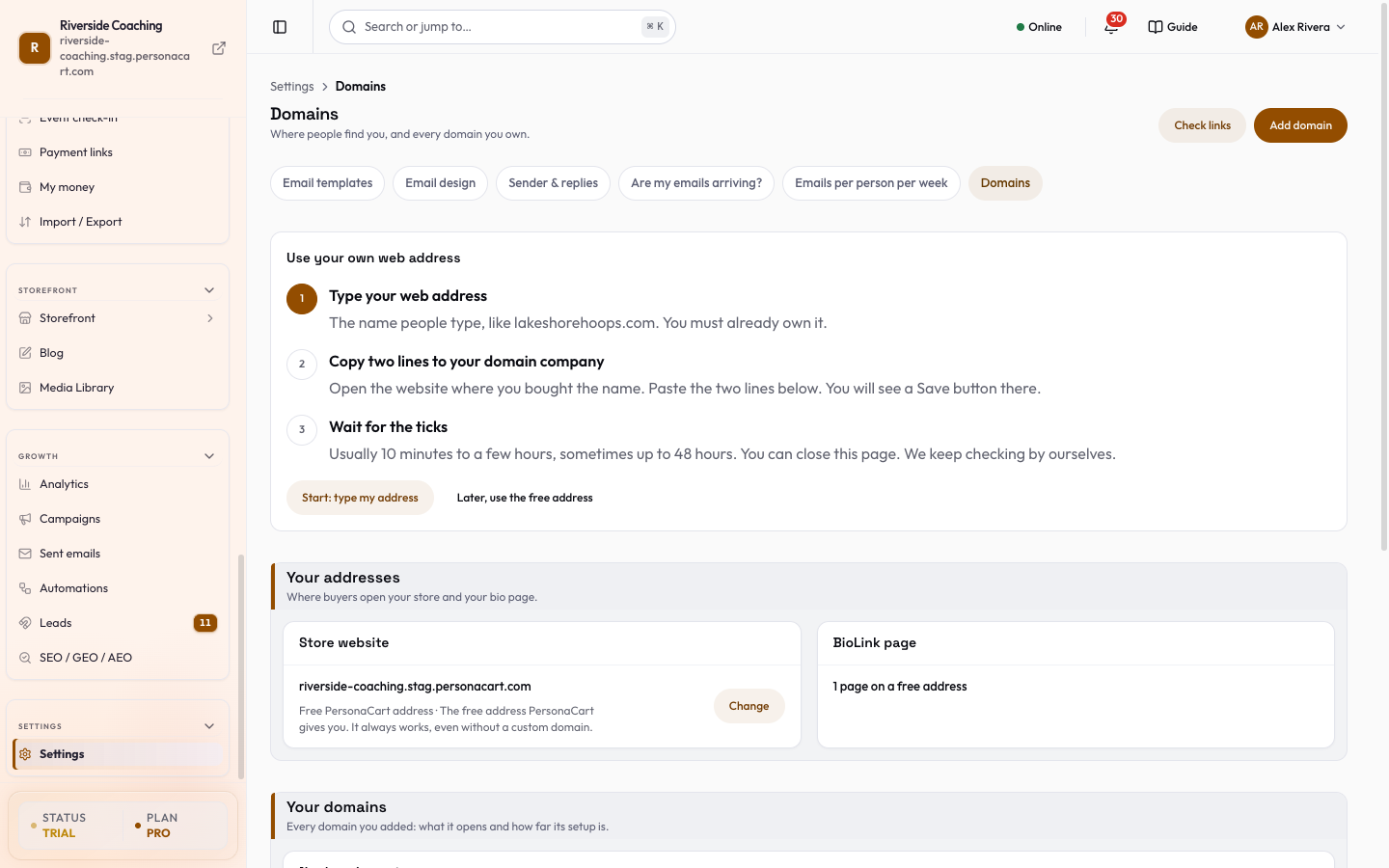
- Put the page on your own web address with custom domains
- Check what each plan adds and how the fee works in Plan and platform fee
Who uses it
- Coaches and creators who share one link on social media.
- BioLink is included with store plans, and also comes as its own BioLink plan.
See it
Watch it in the introduction film: BioLink (1:10).
All BioLink guides
Where to find it
Sidebar → HOME → BioLink. If your account is on a BioLink plan, the sidebar shows only two rows: BioLink and Settings. If you have a store plan (Starter, Pro or Scale), BioLink is included and sits in the Home group of your sidebar.
How the studio is laid out
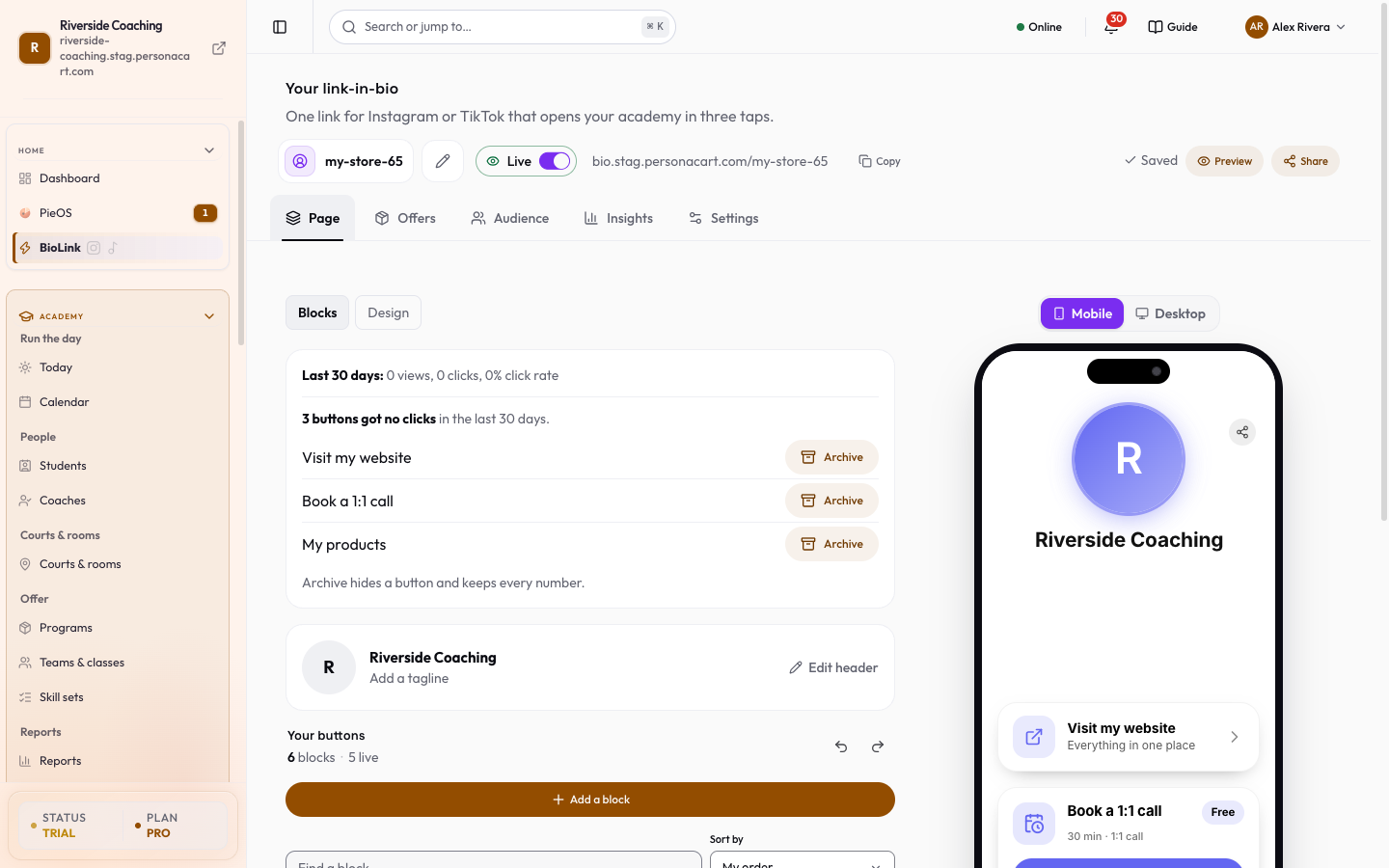
The top of the studio holds your page name, your public link with a Copy button, a Live / Hidden switch, and the buttons Preview, Share and (when your plan has a next step) Upgrade. Below that are five tabs:
| Tab | What it is for | Page |
|---|---|---|
| Page | Add and arrange blocks (Blocks) and choose how the page looks (Design). | Build your page |
| Offers | Everything people can buy or book: products, 1:1 sessions and events. | Build your page |
| Audience | People who left their details, and Reviews (when reviews are on). | Insights and audience, Reviews |
| Insights | Views, clicks, leads, revenue and your recent sales. | Insights and audience |
| Settings | Address, visibility, search, payments, receipts, legal pages, delete. | Settings |
On a computer the studio shows a live preview of your page next to the tab you are working in, with a Mobile / Desktop switch. It updates as you type, and the taps in it work, so you can try your own page.
Get your first page live in three pieces
At the top of a new page the studio shows a short guide, Three pieces. About 5 minutes.:
- Who you are: your name and one line about you (Settings and the header editor).
- One button: add a Link block, the place a visitor should go first.
- Copy your link: publish, then paste the link into your bio.
When all three are done, the guide changes to Your link is live! with Copy link, Open it and Unpublish.
Draft and live
Every change you make is saved automatically as a draft (you see Saving… and then Saved). Visitors keep seeing the last published version until you press Publish. While you have changes that are not published, the studio shows Unpublished changes and a Publish button. Discard throws the draft away and goes back to the live page.
Publish turns on once the page has at least one Link block, so visitors never open an empty page.
The Live / Hidden switch is separate: Hidden takes the whole page offline and visitors see a "coming soon" notice. See Settings.
BioLink or a full storefront?
BioLink is a link hub: quick to set up, one page. For a full multi-page store with a catalog, that is the storefront, and a store plan includes BioLink. You can run both. Your BioLink offers (products, sessions, events) live in the Offers tab and can sit beside your store.
Good to know
- A custom domain connected to the page must be disconnected before the page can be deleted.
Delete page is a soft delete: the page goes offline right away and you can restore it for 30 days from the banner at the top of the studio. After that it is removed for good.
Questions
Where is my BioLink address?
At the top of BioLink Studio, with a Copy button. By default it is bio.personacart.com followed by your handle. You can put the page on your own domain too.
Why can't I press Publish?
Publish turns on once the page has at least one Link block, so visitors never open an empty page.
Can I use BioLink and a store together?
Yes. A store plan includes BioLink, and your offers can sit beside your store. They are two separate pages.
Can I take my page offline for a while?
Yes. Switch it to Hidden and visitors see a coming-soon notice. Switch it back to Live when you are ready.
Related
Product page: BioLink