Calendar, leave and coach hours
In short: Your academy's week and day calendar: add a weekly practice, move or cancel sessions, set coach hours and days off, answer leave requests and see check-ins.
The Calendar is your academy's week. Every practice and class shows up on it by itself. It is also where you say when each coach works, answer leave requests, pick a cover, and see who has checked in. Three tabs sit at the top: Week, Leave and Check-ins. A separate page, Coach hours, adds up each coach's month.
Where to find it
- Academy → Calendar. It opens on Week. Add
?tab=leaveor?tab=checkinsto the address to open the other tabs. - Coach hours for the monthly page. The Leave address (Leave) forwards owners to the Leave tab.
- The page header says "Your academy's week. Every practice and class shows up here by itself." and "Times are in" your store's time zone, for example New York.
- The Leave and Check-ins tabs only appear once you have a coach or a request waiting. The Leave tab shows the number of requests waiting.
Academy pages show in your menu only when Academy is on. The store owner or an admin turns it on in Settings → Academy.
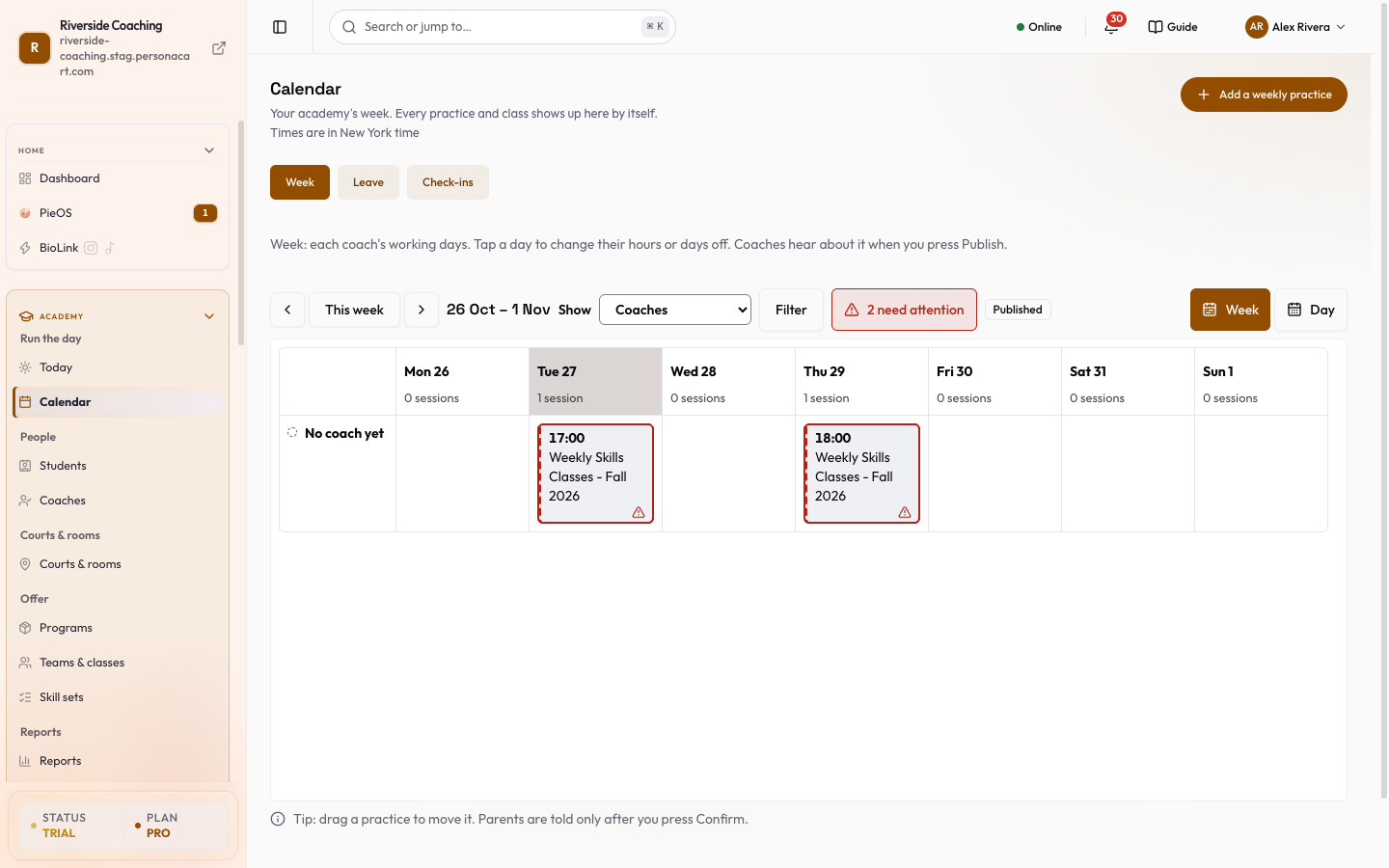
The Week tab
Choose how to look
| Control | What it does |
|---|---|
| Week arrows, This week | Move one week back or forward, or jump to the current week. |
| Week and Day | A week with seven columns, or one day with the sessions in detail. On a phone the week shows one day at a time with a Pick a day strip. |
| Show (drop-down) | Teams, Coaches or Courts and rooms. The rows of the calendar change; the sessions stay the same. |
| Filter | Narrow the rows. Right-click a session for Show only this coach, Show only this team or Show only this court. |
| Fit to sessions and Show full day | Crop the hours to where sessions are, or show the whole day. |
A summary line says how many sessions and coaches (or teams) are in view, and how many need attention.
What the colours and tags mean
- A coach on leave or on a day off is hatched. On leave · waiting for approval means the request is not answered yet.
- Tags on a session: Overlaps N min (same coach in two places), Needs a coach, Outside hours (outside that coach's usual hours), Coach on leave, and for a court Closed for maintenance.
- Needs attention lists each problem in words, with a button to fix it: Give to (a free coach), Start at (a free time), Move to (a free court), or Show on calendar. Everything that clashes is named in words, for example which coach and day, and by how many minutes two sessions overlap.
- Sessions with no court show in a tray, Needs a court. Drag one onto a court. A court cannot be double-booked.
Add a weekly practice
Press Add a weekly practice (top right). Three short steps:
- Which team or class practices? Pick one, or Make a new team instead. If you have no program yet, the sheet says "First, make what parents pay for" and links to Make a program.
- Which days? Tick every day this team practices. Set Starts at and Ends at. The end must be after the start. Optional: Court (or Not decided). For a class there is also Coach (or Keep the current coach). A team practice has no Coach field here: the coach comes from the team.
- Check it. A summary shows Team, Days, Time, Coach and Court. For a team, you choose How long?: a number of weeks or Until I stop it. For a class, Email the families in this class about the new times is off until you tick it.
Press Save practice. Nothing is sent to parents unless you ticked the email box (classes only), and you can move, change or cancel any practice later. If the court is already in use then, the sheet says so and asks you to pick another court or time. After saving, an Undo is offered.
Change a session
Click a session (or right-click). The menu offers:
- Open session, to see the roll call.
- Change time. Drag the session, or type a new date, start and end. The confirm step shows who is free and who is not, and a check line for each: the coach is free at that time, is already on another session (with the overlap in minutes), or is on leave that day, and whether the session keeps the same length. Tick Tell people (on by default) to message the coaches, and the parents of the children enrolled. Press Confirm and notify or Confirm. If there is a clash you can still choose Move anyway. Undo puts it back.
- Give to a coach, Add 2nd coach (co-teaching), Remove, or No coach.
- Put on court or Remove from court.
- Cancel session, with an optional reason. For a practice that repeats, choose Only this one or This and all future ones, and tick Tell the families if you want them told (a line shows "Cancels 3 practices. 12 children in 9 families get one message."). Families are told only after you confirm: the page says how many parents will be told ("The parents of 12 children will be told it is cancelled"). Keep session backs out.
- Hours & days off for the coach.
- Mark day off for a coach.
- Approve or Decline a pending leave request, and Find cover for their sessions.
A few menu items say "Coming soon" (for example copying a session to another day). They do nothing yet.
You can also move a session by keyboard: press Space to pick it up, the arrow keys to move it, and Space or Enter to drop it and confirm. Escape cancels.
Coach hours and days off
Click a coach (or choose Hours & days off). A dialog opens:
- Usual week hours: for each weekday add blocks with From and Until. Add hours, Remove these hours, Copy to Mon-Fri, and Copy hours from another coach. Nothing set means no limit: open any time. Each block needs an end after its start, and blocks on the same day cannot overlap.
- Days off: First day, Last day, and a Note only you and the coach see. Add days off, Remove this day off. Days from approved leave are kept as they are. Repeat this week's days off on the week of copies them forward.
- Save draft saves the hours without telling anyone. Undo edits drops what you typed. Discard saved draft deletes the draft. Days off are saved right away and the coach is told.
While drafts exist, the toolbar shows how many coaches changed, with Publish and Discard. Publish asks first, makes the new hours live and tells each coach once. If someone else changed the same hours while you worked, the page reloads them and asks you to check and try again.
Coach change requests
If requests are switched on for your store, a coach can ask you to change their weekly hours or a day off from their own app. The request shows above the calendar as Change requests from coaches, with the hours asked for. Press Approve (the coach's hours update and they are told) or Decline (add a reason the coach will read).
The Leave tab
A coach asks for days off in their own app. Here you answer.
- Waiting and Decided lists. Each request shows the coach, the dates, the type (Sick, Personal, Other) and what the coach wrote.
- Approve and pick cover opens the sessions affected that week (how many sessions, and how many are still without a cover). Tap a session to see the children affected and who is free: each coach is tagged Free, Busy then, Outside their hours, Day off or On leave. Same coach for all N sessions without cover assigns one coach to all. Assign cover saves. You can still assign a coach who is not free; a warning says so.
- Approve, no cover needed approves without picking a cover.
- Reject needs a reason. Quick reasons are offered. The coach reads it.
- See sessions and cover shows the impact without deciding yet.
A coach who was only covering a session shows "Was only covering". The session goes back to its original coach from the cover screen.
The Check-ins tab
- Checked in now lists coaches who have checked in, with the time. "Nobody is checked in right now" when none have.
- Before a session each coach is shown as Not checked in yet, Reminded, not in yet, Late, not checked in or Missed the session.
- Check-in history has From and To dates and the buttons Last 7 days and Last 30 days. Each row shows "In 4:02 pm, out 5:31 pm" and minutes counted. Hours count from check-in to check-out; a session with no check-out is not counted until you fix it. Add end time opens a box for the end (it must be after the check-in) and an optional reason, and the row then shows as edited by you.
- The reminder timing is set in Academy → Settings, in the Coaches section, card Coach check-in: First reminder (minutes before the session, 0 to 120, 0 turns it off), Which sessions (First of the day or Every session), Second reminder (minutes after the start if the coach is still not in, 0 to 60) and Tell me (minutes after the start, 0 to 120; it also counts as late on this tab). Only the owner can change these.
Coach hours (monthly page)
Academy → Coach hours adds up every coach's month from real check-ins. You never type anything.
- A sentence at the top: "3 coaches worked 41 h 30 m across 38 practices in September. All check-ins are confirmed." (your own numbers)
- Previous month, Next month. A banner says when the month is not finished yet and which practices are not counted.
- A table: Coach, Practices, Worked, Planned, Check-ins, and See practices.
- A check-in is Confirmed, Needs a look (the app marked the coach present on its own and the coach did not confirm), or No check-out. Yes, they were there confirms it. Add end time fixes a missing check-out.
- Download for payroll gives a spreadsheet of the hours.
- "Hours only. Pay rates are not kept here yet."
Good to know
- Hours come from real check-ins, not from the schedule.
- Changing a session's time or cancelling it tells families only when you confirm and the tell box is ticked.
- A coach sees a read-only Team roster (who works when) and can send you a Request change on their own row. See Coach app: every screen.
Questions
Does Add a weekly practice email parents?
No, except for a class where you tick the email box. Parents see the days on your page when it is live.
A coach is missing from the calendar rows.
Check the Show coaches filter, then open Coaches to see whether the profile is archived.
Where do I see a coach's leave balance?
Leave is a request and an answer. There is no balance. See the Leave tab for decided requests.
How do I stop check-in reminders?
Set First reminder and Second reminder to 0 in Academy settings, Coaches section, card Coach check-in.
Related
Part of Academy overview · Product page: Academy