Academy overview
In short: Academy runs a club, camp or studio with children: programs parents register for, teams, attendance, waivers, coaches and parents in one place.
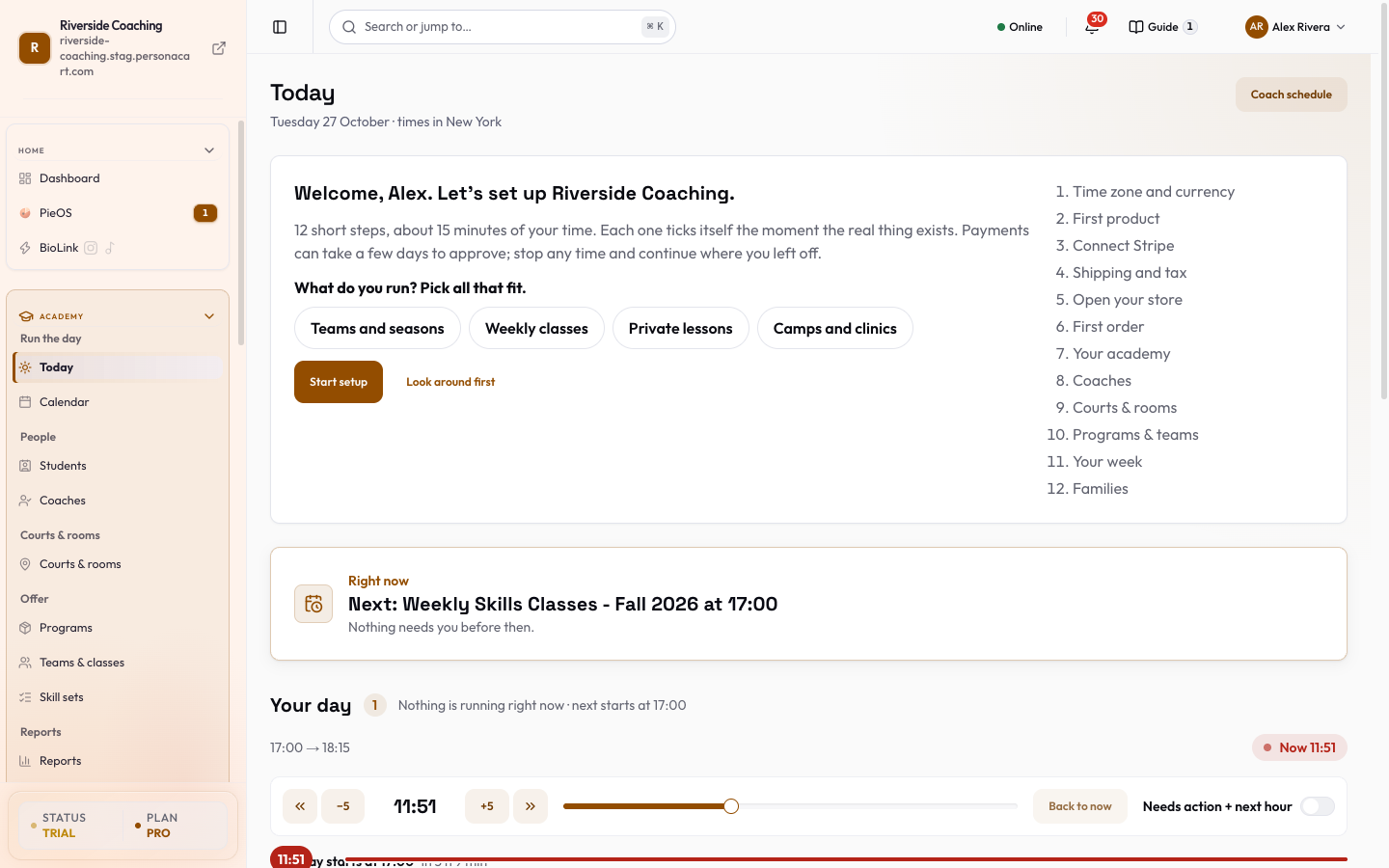
Academy is the part of PersonaCart for running a program with children and weekly sessions: a youth basketball club, a camp, a yoga or movement studio. You sell the spots in your store as usual. Academy adds the work around the sale: who is on which team, who is coming today, who showed up, and what the parents and coaches see. In this video you will learn how the Today page works. You will see the one thing to do right now, and the list of jobs that wait for you. Nothing is changed. Coach schedule opens the week of sessions for your coaches. Right now shows the one thing to do next, here finishing attendance. The button takes you straight to that job. We do not press it. Do these first lists what needs you today, with a count on top. So: do the job under Right now, then work down the list. Thank you so much for watching PersonaCart. To read the full guide, go to docs dot personacart dot com. To try PersonaCart yourself, go to personacart dot com. And subscribe, so you do not miss the next tutorial.Video transcript
It is for youth sports programs and studios that run teams, weekly classes, camps and private sessions. If you only sell products or courses, you do not need it.
What is Academy?
Academy is an optional part of PersonaCart for programs with children and weekly sessions. A parent finds your program, registers their child, signs the waiver on screen and pays; the child lands on the right team, and your coach takes roll call on a phone.
What you can do
- Run each day from Today: sessions, who is coming and what needs you
- Set up programs families pay for: a team season, a weekly class, private lessons or a camp
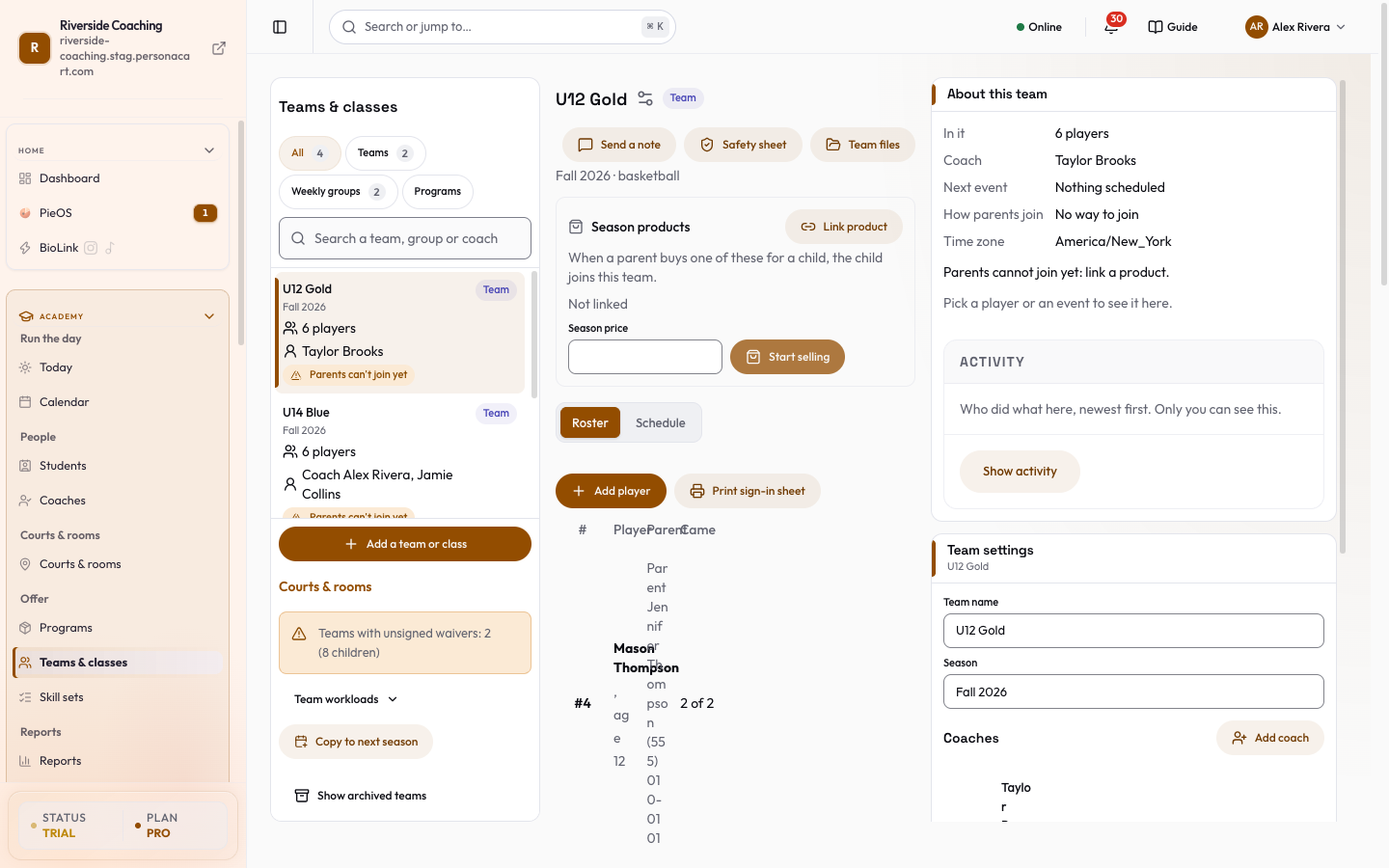
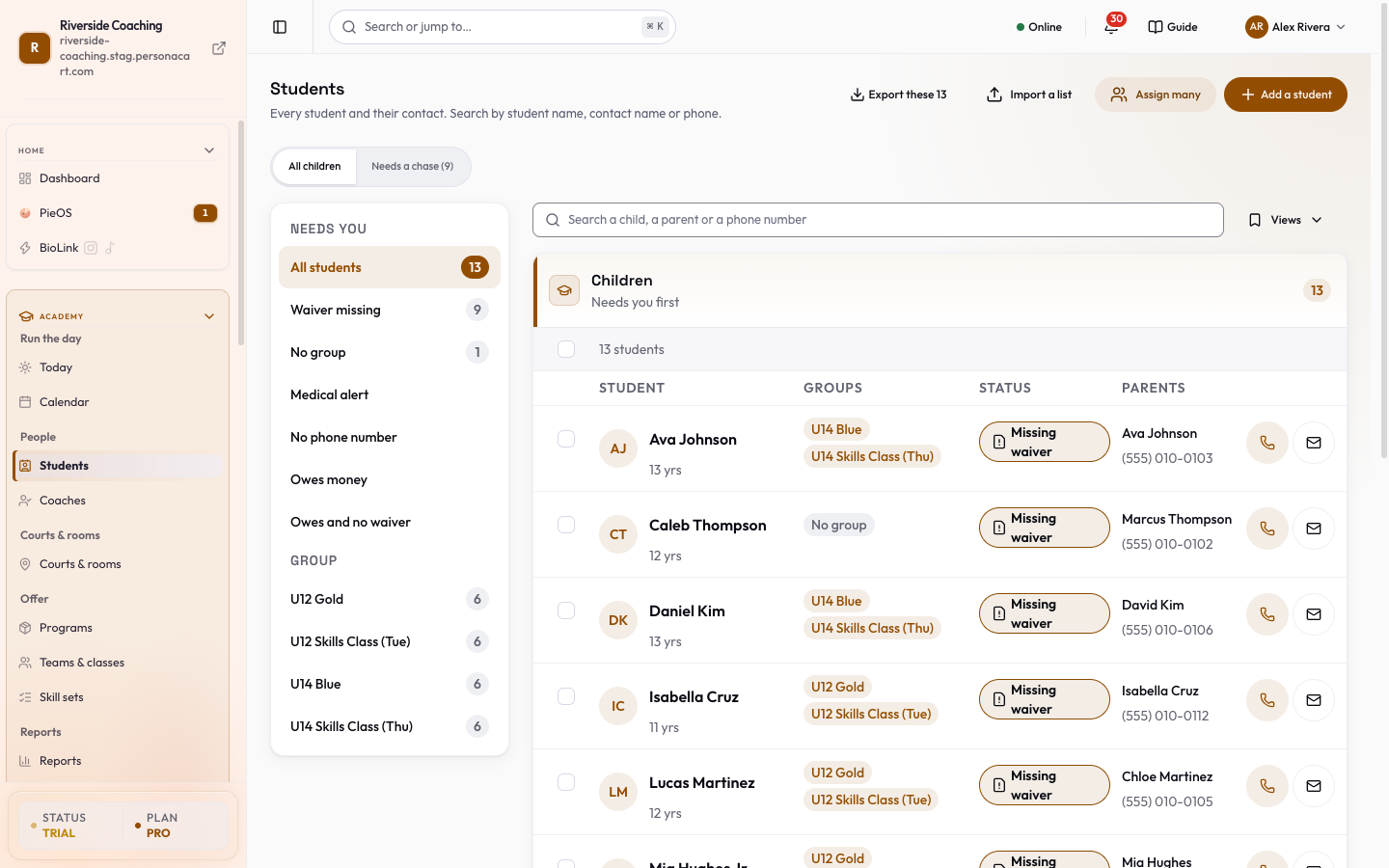
- Keep teams and rosters and students and families in one list
- Take attendance and hand out make-up credits
- Collect waivers and keep children safe
- Add coaches who see only their own teams in the coach app
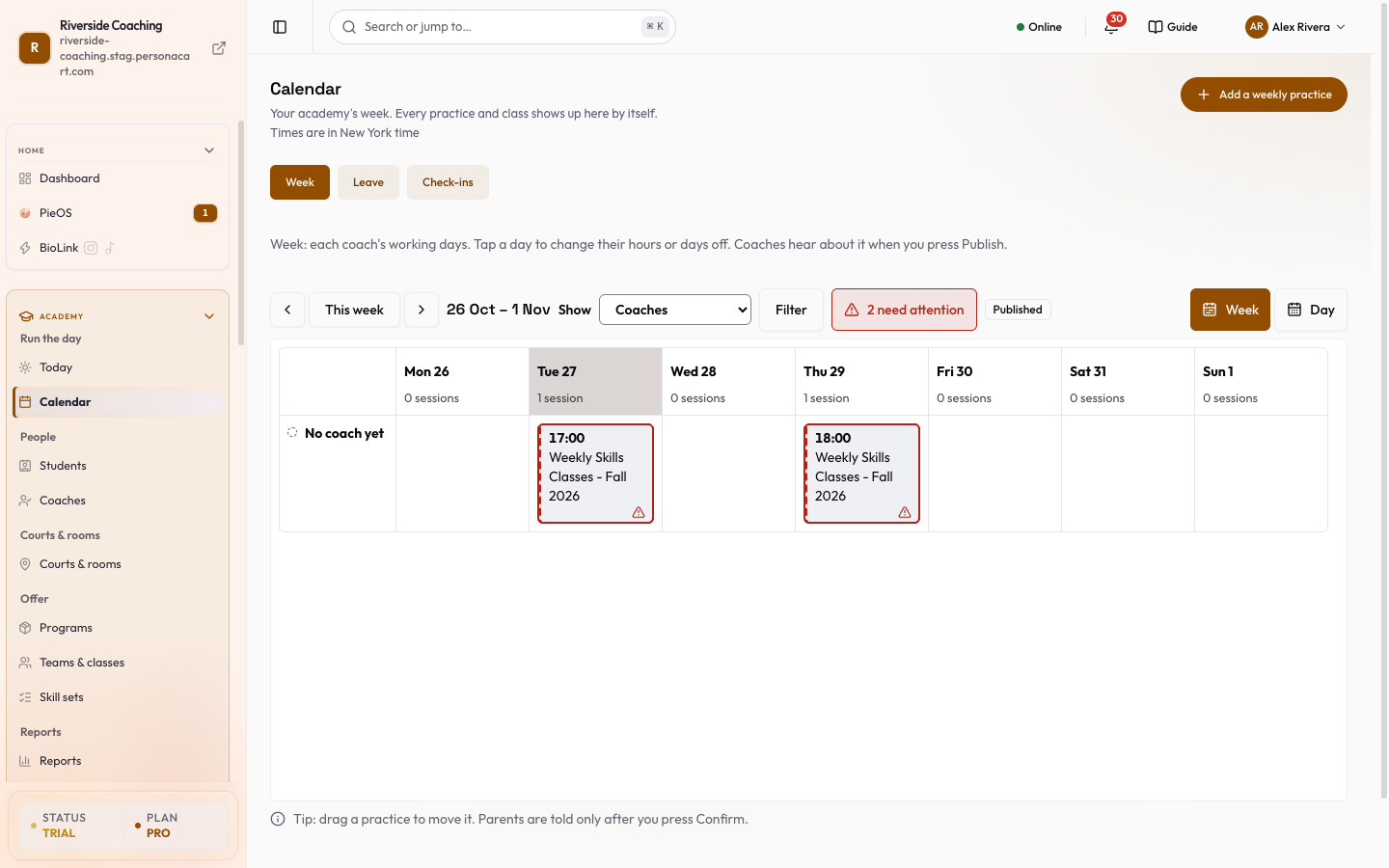
- Plan seasons and days off, courts and rooms and the calendar
- Set fees and sibling discounts and run a waitlist
- See money, attendance and who owes you in reports
Who uses it
- Youth basketball clubs and other youth sports programs.
- Camps, and yoga or movement studios with weekly classes.
- Club owners, the coaches they add, and the parents who sign up.
See it
Watch it in the introduction film: Academy (1:49).
Where to find it
Academy is a switchable module. It has its own box in the left menu.
- Off: there is no Academy box. Turn it on in SETTINGS → Academy with the Turn on Academy button. The store owner or an admin can do this. A short list of what changes opens first, and nothing in your shop changes.
- On: the Academy box appears in the left menu. If you do not see it, Academy is off for your store.
Turning it off hides the Academy pages and pauses Academy emails. Nothing is deleted. You can turn it back on at any time.
The rows in the Academy menu
| Row | What it does |
|---|---|
| Today | The day at a glance: sessions, who is coming, and what needs you. Opens attendance for each session. See Today. |
| Calendar | Your academy's week, your coaches' hours, their leave requests and their check-ins. See Calendar, leave and coach hours. |
| Students | One row per child, with the parents' phone and email. Add a student, import a list, assign children to a team. |
| Coaches | Your coaches, their hours and their defaults. See Coaches and Coach app and roles. |
| Courts & rooms | The places you train. Sessions and rentals use them. |
| Programs | What families pay for: a team season, a weekly class, private lessons or a camp. This is your Products page showing only Academy items. |
| Teams & classes | Every team and weekly class: coach, players, next session, how parents join. See Teams and rosters. |
| Skill sets | The levels and skills your coaches mark for each child. |
| Reports | Kids signed up against your spots, money in, who owes you, who showed up, who joined and left, and change history. Download gives a file for Excel or Sheets. |
| Settings | Academy's own settings: attendance and absence rules, reminders, coach and child-safety options. |
Three more rows sit under Opens in your main store: Orders, Inbox and Customers. Orders and Inbox open narrowed to Academy. Customers opens your normal customer list.
Pages you open from other pages
Some Academy pages have no row of their own. You reach them from the page that points to them.
| Page | How to reach it | What it does |
|---|---|---|
| A child's page | The child's name on a Students row | Level, attendance, feedback, progress, photos, family. |
| Waivers | Today's "Waivers not signed" card | Who signed, who to chase. |
| Waitlist | Today's "Waiting list" card | Children waiting for a full class, and offering a spot. |
| Make-up credits | Credits not used yet in Academy settings | Credits families still hold. |
| Academy activity | Reports → Change history, or the activity link in Academy settings → Child safety | Who did what, and when. |
| Seasons and days off | Academy settings → Programs & calendar, Closed days | Your season and the days nobody comes. |
| Calendar, leave and coach hours | Calendar row, Coach hours | The week, leave requests, check-ins, monthly hours. |
| Needs your OK | Today, Inbox → To approve | What waits for your approval. |
How parents and coaches use it
Parents log in to their account on your store. They see their children, the next sessions, and what needs them (for example a waiver to sign). They can tell the coach "Can't make it", answer going or can't go for team games and practices, and message the coach. Where families miss a class, a make-up credit may follow. See Parent account: menu and Home and Attendance. The Parent app switch in Academy settings chooses between two parent menus: the standard one (Home, My family, Orders, Account) and the Academy one (Home, Sessions, Classes, Messages, Account).
Coaches get their own login and a coach app. They see only their own classes and teams, take attendance and write feedback. See Coach app and roles and Coach app: every screen.
You run the day from Today, and set the rules once in Academy settings. What Academy sends by itself is on Academy notifications and emails.
Good to know
- Active children are counted by plan: 50 on Starter, 200 on Pro, unlimited on Scale (as of October 2026; check Settings > Billing). Archived children do not count.
- Coaches have their own login and do not use a staff seat.
Questions
Does Academy change my store or my orders?
No. Your shop, products and orders stay the same. Academy adds pages around them. Switching it on sends no email.
Who can turn Academy on or off?
The store owner or an admin. Other team members can look around but the button is locked for them.
Is Academy only for sports?
No. It is built for children's programs, so a studio with weekly classes can use the same pages. Teams are optional; weekly classes work without them.
Where do I start?
Make a program (what families buy), add a team or a weekly class to it, then add your coaches. Today fills in once a team or class has children in it.
Related
Product page: Academy